Ekkie Labeling Onboarding guide
Written By Casian
Last updated About 1 month ago
1. Sign in
Sign in to app.ekkie.ai with microsoft OAuth. On first sign-in accept the app registration's consent prompt.
2. Configure Connection
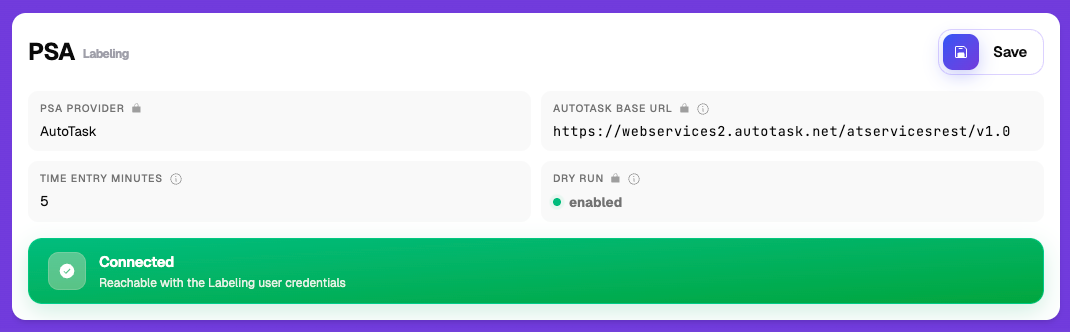
in the PSA page, fill out the missing fields with your organization’s credentials, unless pre-filled by Ekkie support, click Test connection to verify the Autotask API user is reachable.
3. Configure Ticket Statuses
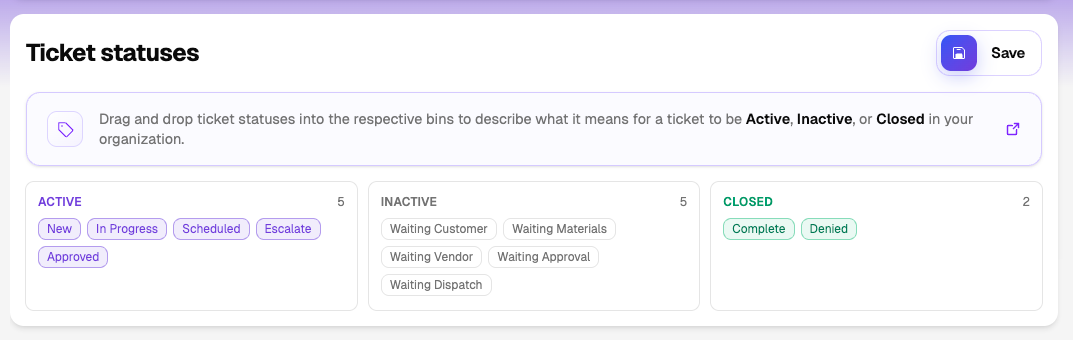
Configure the ticket status bins (drag and drop in active / inactive / closed) so the rest of the app knows which Autotask status IDs belong to which lifecycle state. Hit Save.
4. Sync with your PSA’s environment
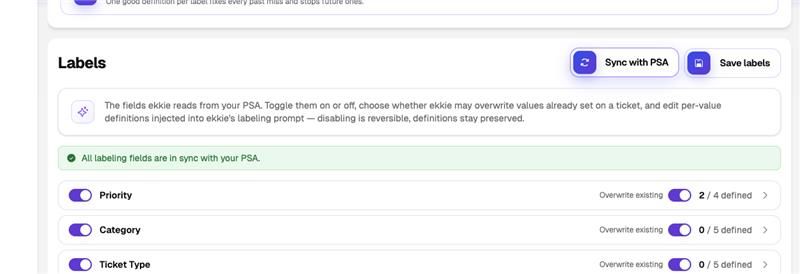
Click Sync with PSA. This pulls the live picklist values (issue types, sub-issue types, queues, …) from your PSA system into your tenant's configuration. Apply Updates and Save Labels.
5. Configure Labels to your needs
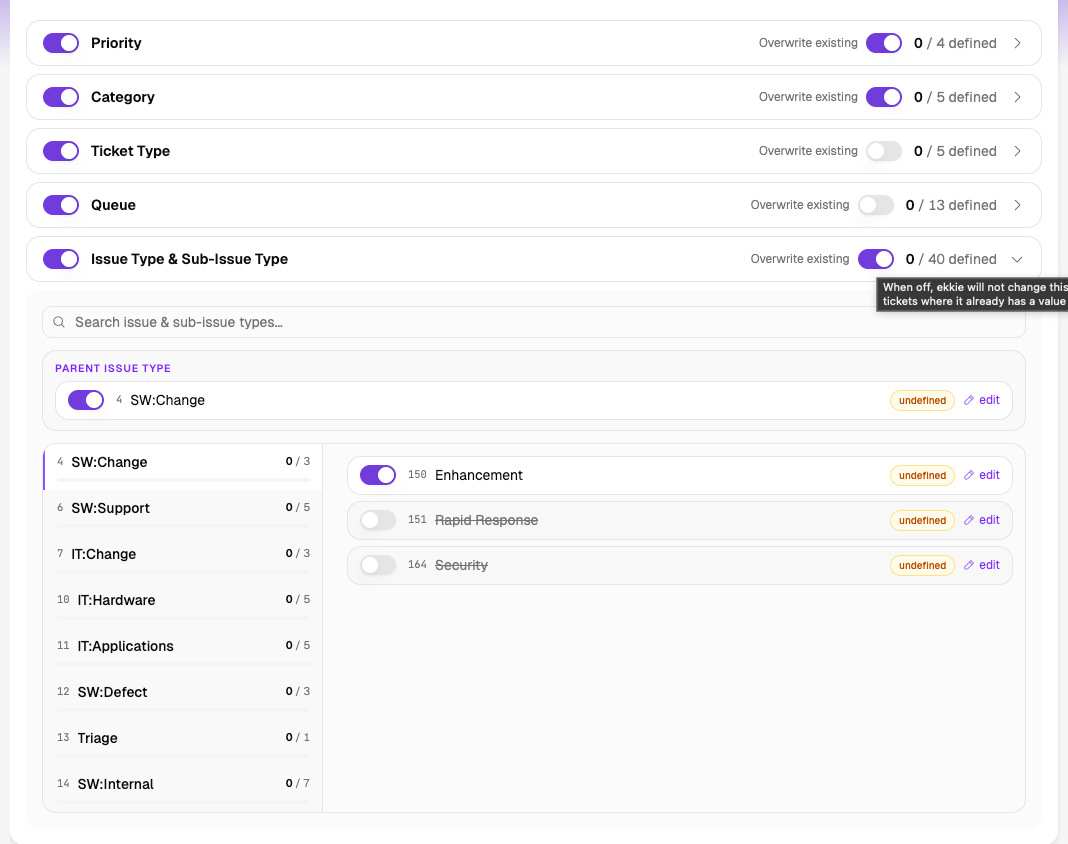
Turn Off any unwatend labels, Ekkie will no longer consider these options when choosing what to label a certain field, turn Off a whole field (such as Ticket Priority or Ticket Category) to tell Ekkie not to label that field at all. Toggle Off the ‘Overite Existing‘ for any field you want Ekkie not to overwrite your label, if that field is already labeled with a value Ekkie will skip it instead of overriding it.
* By request Ekkie can be set up to label only tickets ingested from certain configurable Queues, contact Ekkie support to enable this functionality in your tenant. (Ekkie will no longer assign tickets to Queues and will only label tickets in queues of your choice.)
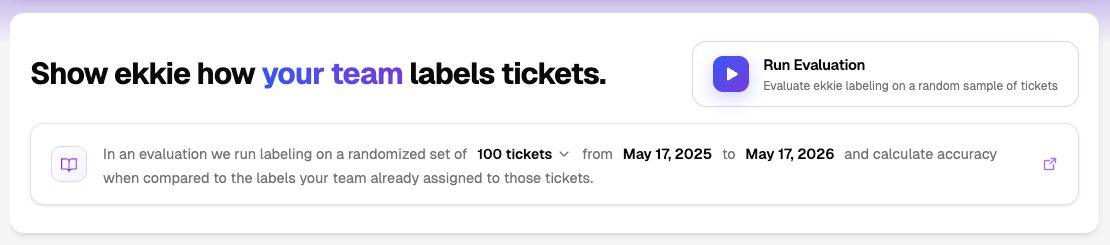
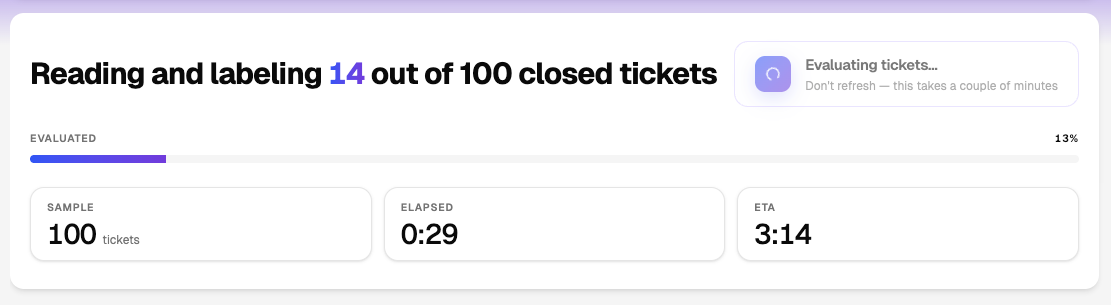
6. Run an evaluation
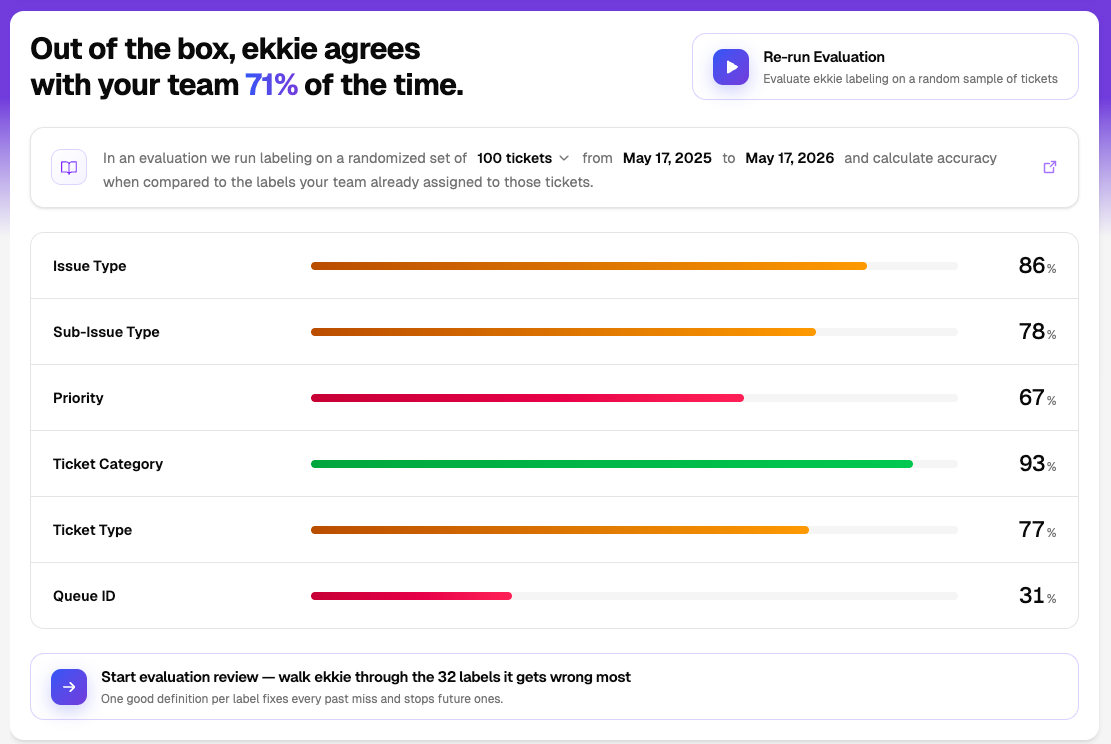
Click Run Evaluation. Ekkie labels a sample of recent closed tickets and compares against what the your team picked.
7. Tune the label definitions
After the evaluation is completed, click on Start Evaluation Review, for every label Ekkie disagrees on, write a tight definition (one good description per label fixes future Ekkie labeling mistakes).
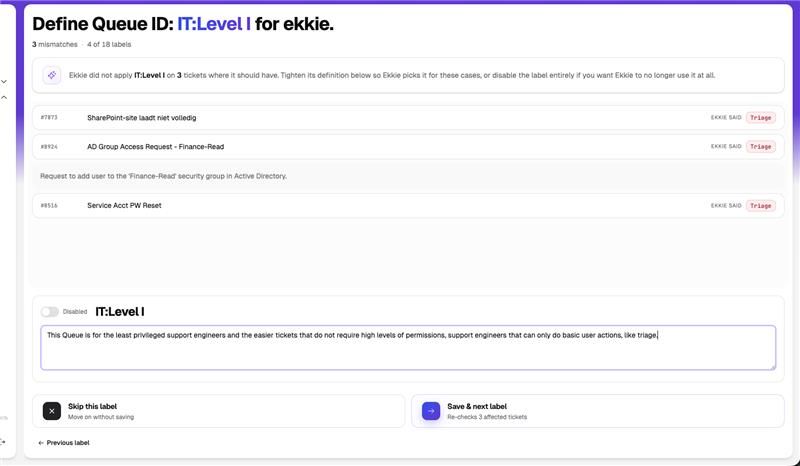
8. Iterate until satisfied
Rerun the evaluation with the new definitions; repeat. You can re-tune indefinitely without us doing anything.
9. Let us know, we will turn on Dry-Run mode
We will turn on dry-run mode when you are satifised with the results of the evaluations, in this mode, Ekkie will label all ingested tickets but it will not actually write to Autotask the results, when these tickets are also labeled by hand in Auototask you will be able to see a side by side view of exactly how Ekkie would perform in production.
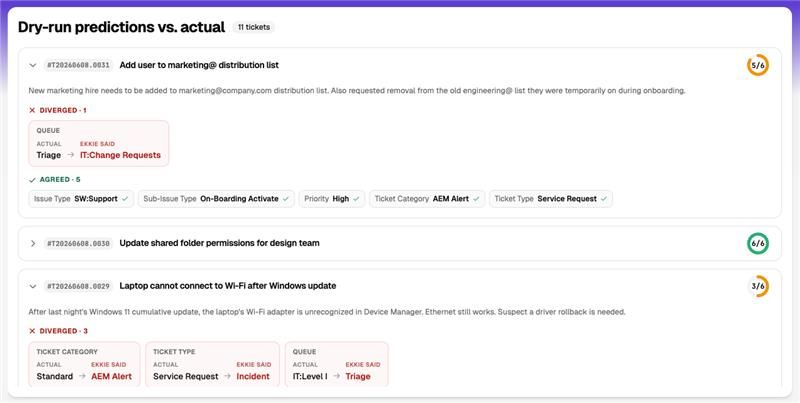
10. Let us know
Once you’re happy with the results of Dry-Run, give the Ekkie labeling Autotask Api User write permissions and tell us, we will flip the production switch and enable live labeling for your tenant.