Ekkie Chat Documentation
Written By Casian
Last updated 3 months ago
Engineers chat with Ekkie inside any ticket. Ekkie reads the ticket, asks clarifying questions, and runs Microsoft 365 / Autotask actions (Entra, Exchange, Defender, Intune, Teams, Autotask) on the customer's tenant, with engineer approval for anything destructive.The chat, tool calls, and outcomes save back as PSA notes and time entries to log all Ekkie for tracing.
Chat flow
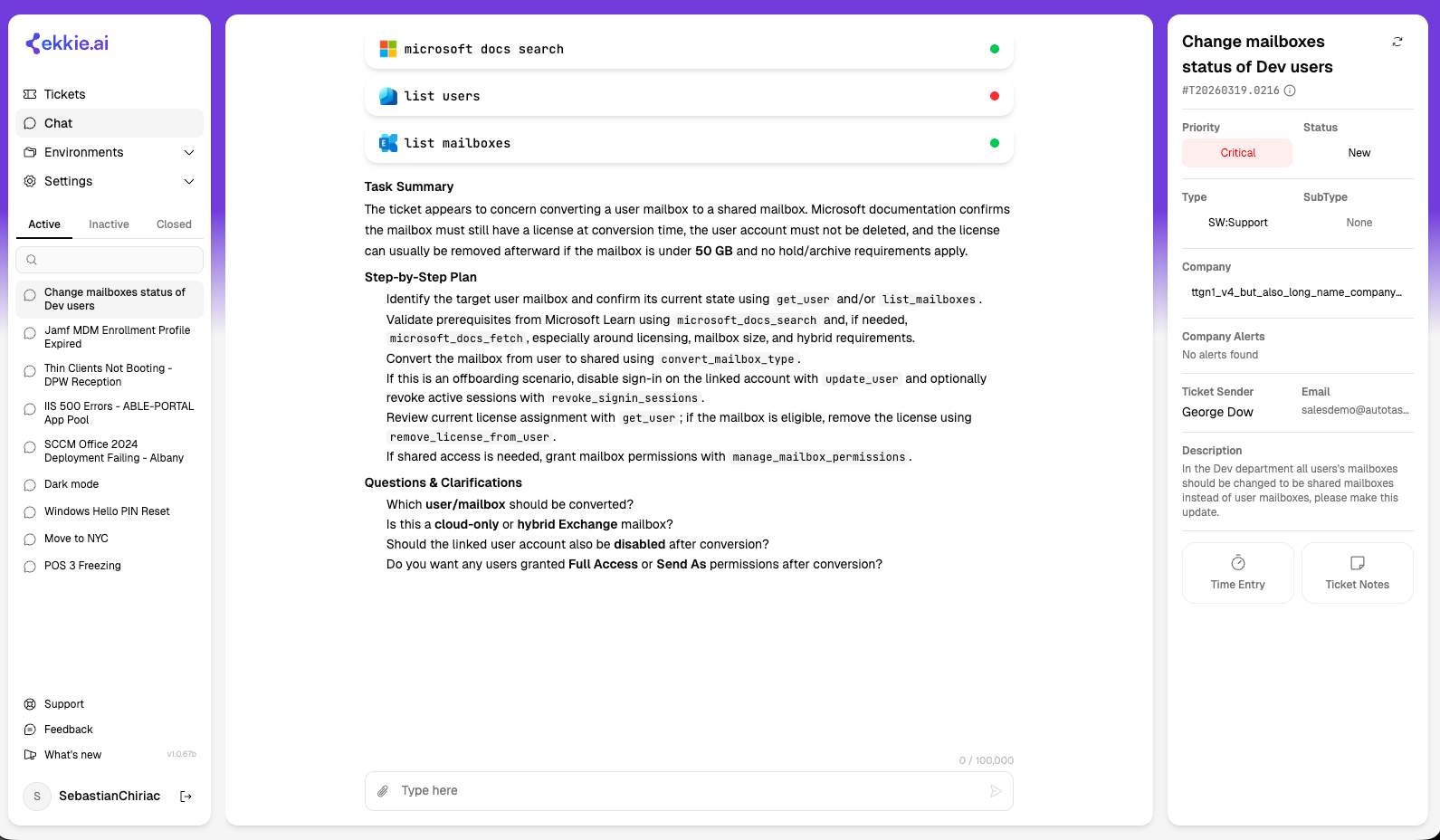
Open a ticket — the chat panel renders alongside the ticket details.
Ekkie auto-generates a resolution plan on first open. No engineer approval is needed for planning.
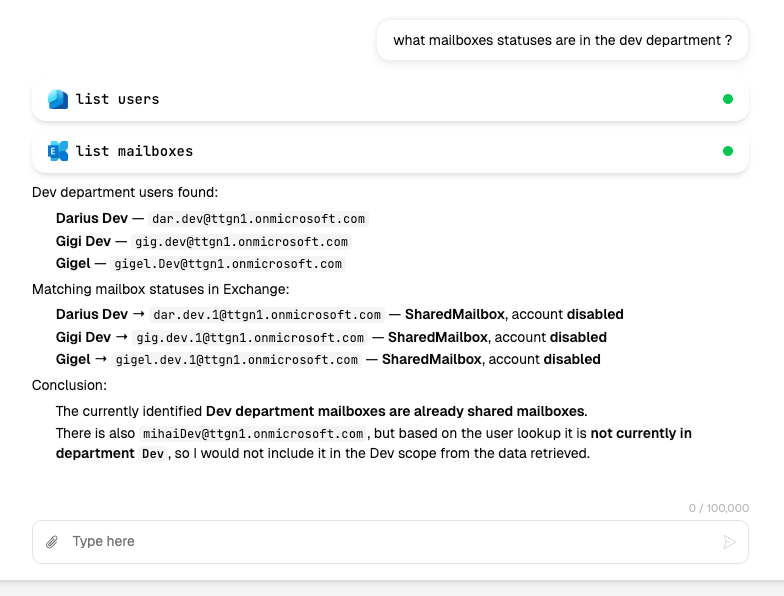
The support engineer types a message. Ekkie picks a tool and fills in the arguments.
For tools marked "requires approval", the engineer sees a card with the proposed arguments. Controls: Approve, Edit args and approve, or Deny.
Approved tools run and results stream back into the chat. Denied tools never execute.
Ask Ekkie — chatting without a ticket
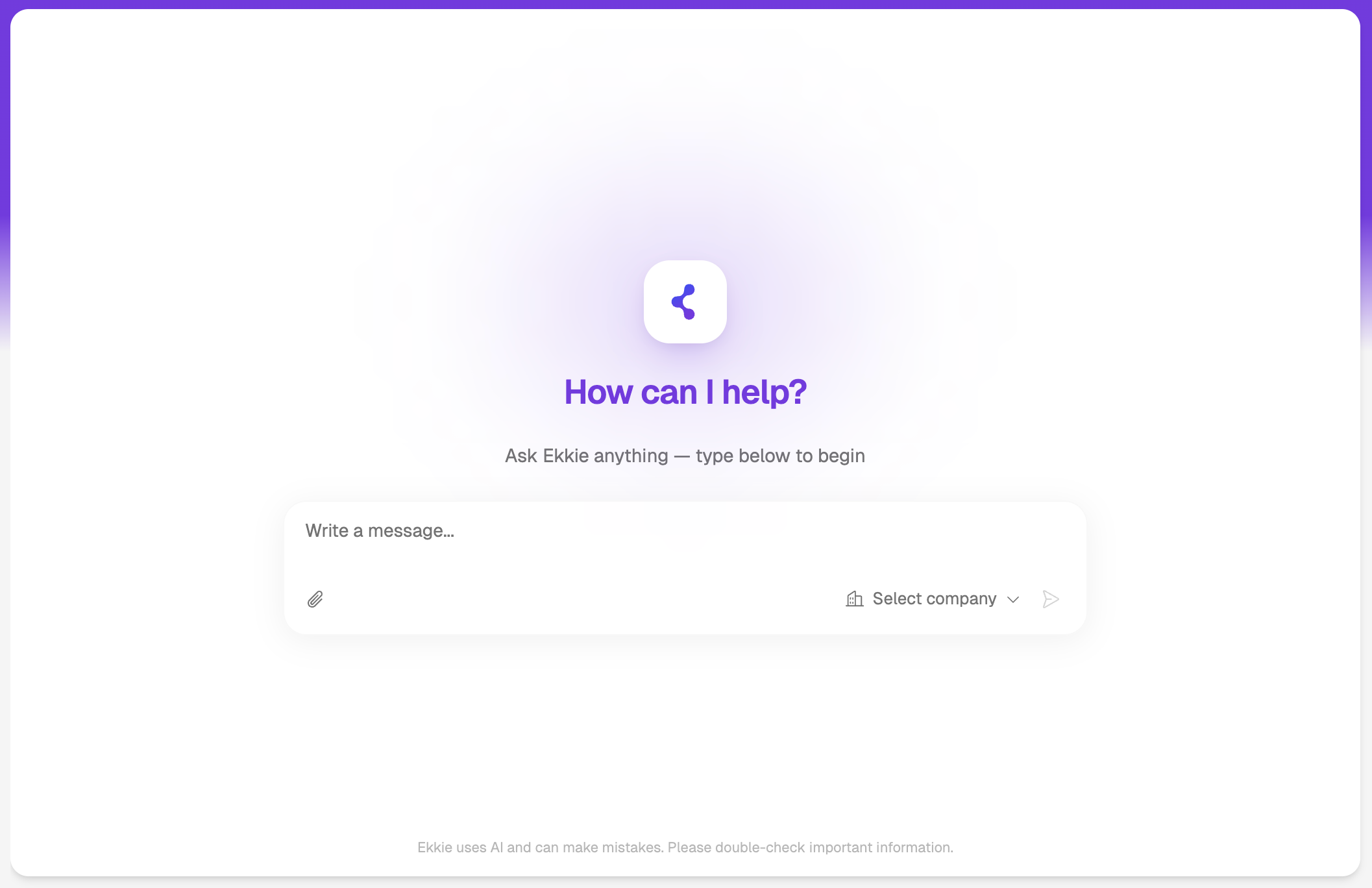
Alongside ticket chats, engineers can open a free-form "Ask Ekkie" conversation that is not tied to any ticket, for one-off questions, a quick Microsoft 365 action, or trying something out without a ticket in front of you.
Starting a chat — start a new chat from the sidebar and type your question. Your past Ask Ekkie conversations are listed in the sidebar to reopen.
With or without a company — a chat starts with no company attached, so Ekkie answers from general knowledge and its own documentation only, with no access to any customer's Microsoft tenant. Pick a company from the control in the message box to point the chat at that customer; from then on Ekkie can run tools in that customer's tenant, following that company's tool settings and SOPs. You can switch the company mid-chat or clear it back to documentation-only, and a marker in the thread shows where the scope changed.
How it differs from a ticket chat — there is no ticket to read and no automatic resolution plan, and nothing is written back to a PSA ticket as notes or time entries. Otherwise it behaves like a normal chat, including approval cards for tools that need them and file attachments.
Which tools are available — with a company attached, the usual rules apply (a tool is available only if it is enabled for both the company and you, and needs approval if either requires it). Web search and documentation search are offered here even without a company attached.
Ekkie answers questions about itself
Ekkie can answer "how do I do this in Ekkie?" questions using its own help center. When documentation search is enabled, Ekkie looks through Ekkie's published help articles and replies with a short explanation plus links to the relevant help.ekkie.ai pages.
It draws only from the public help center — the same articles published at help.ekkie.ai — so its answers stay in sync with the live documentation.
It is read-only: it looks things up and cites its sources, and never changes anything.
It is offered in Ask Ekkie (ticketless) chats by default, and can also be enabled for ticket chats. Like any tool, it is switched on from the settings page under Tool access.
Settings — enterprise-app & tool access
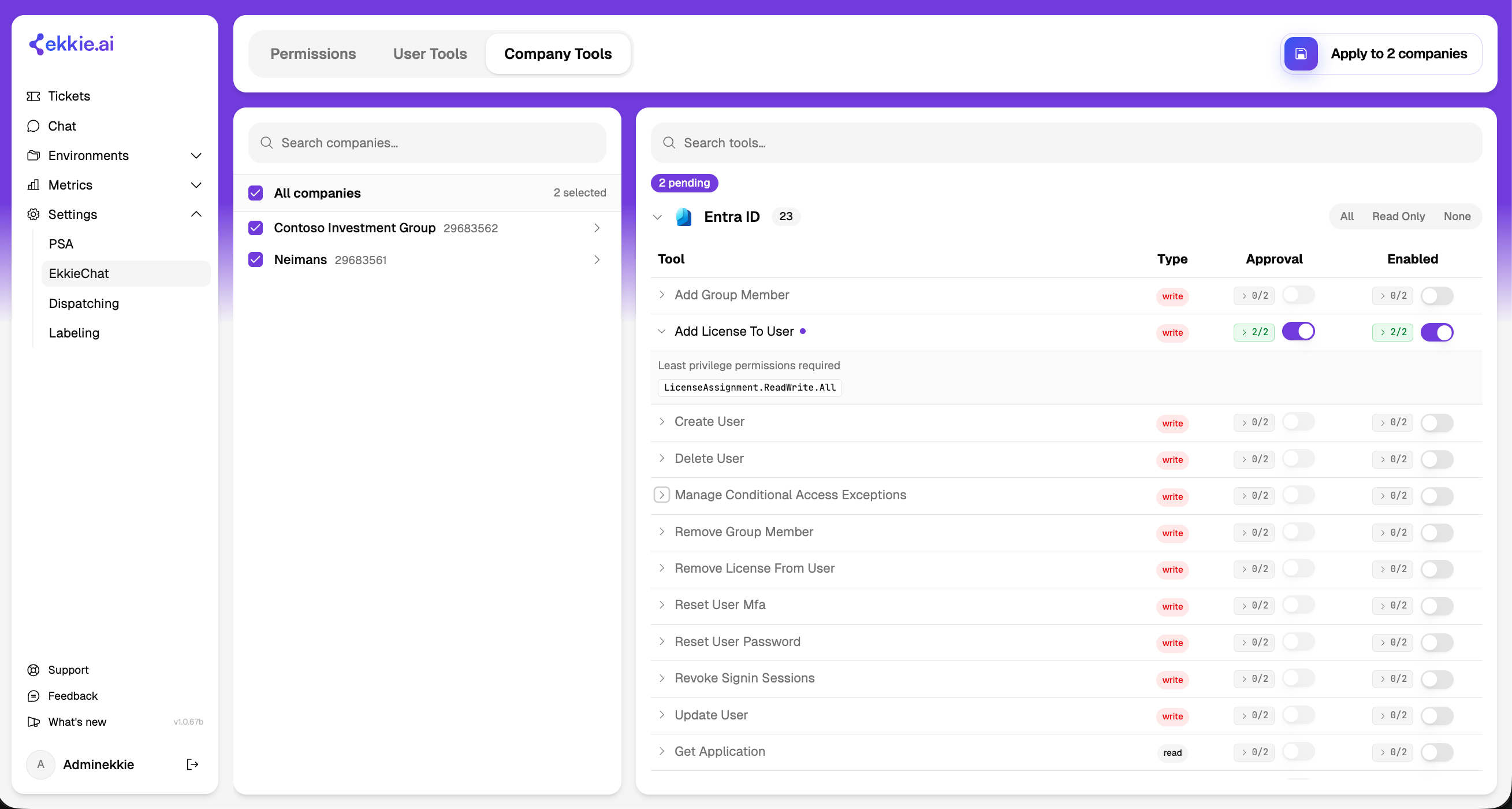
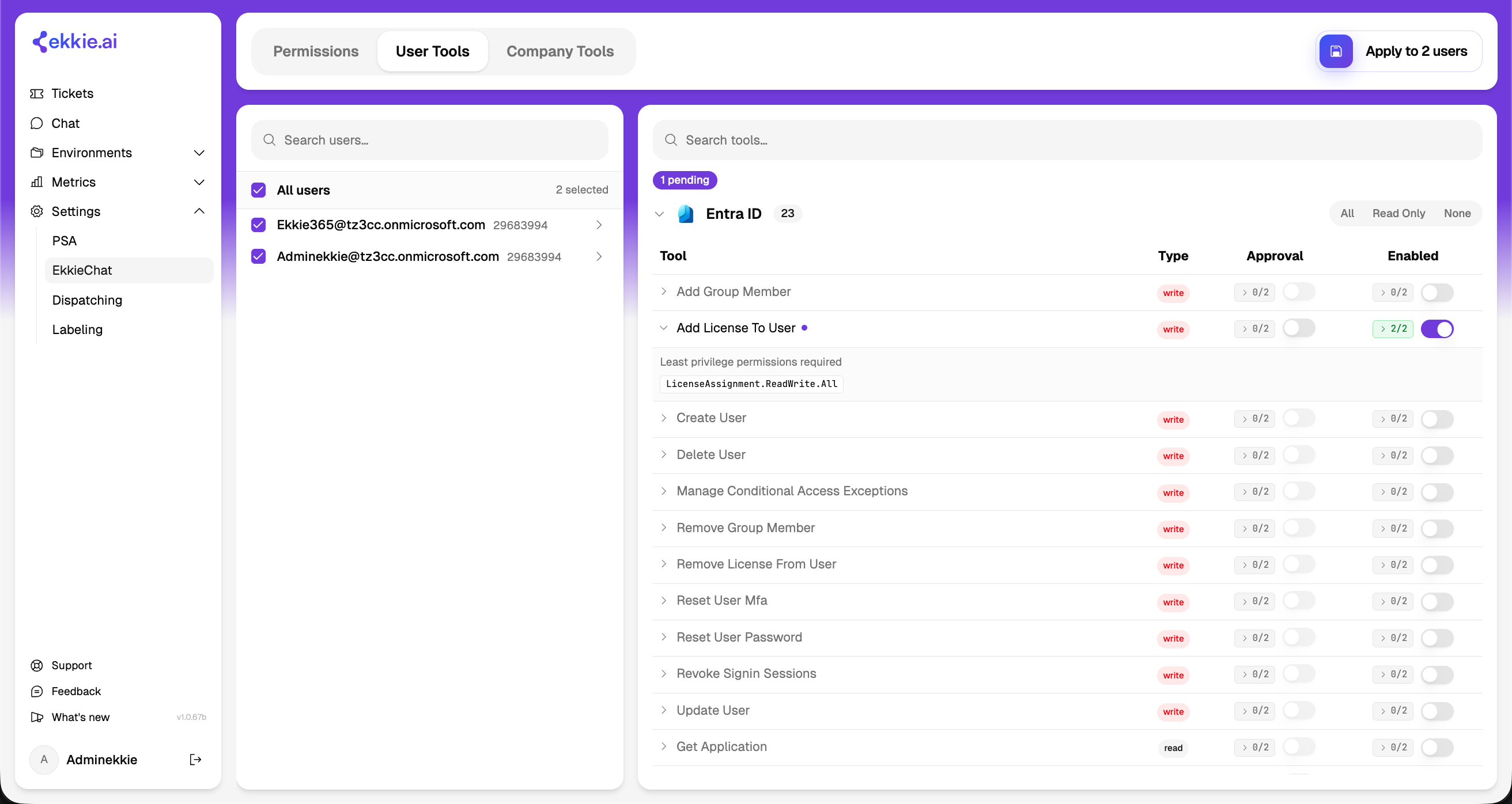
The EkkieChat settings page is one place to grant access across all your managed companies at once. A mode switch at the top gives three views, each with the same layout — pick who you are changing on the left, choose what to grant on the right, and Apply it to everything selected in one action:
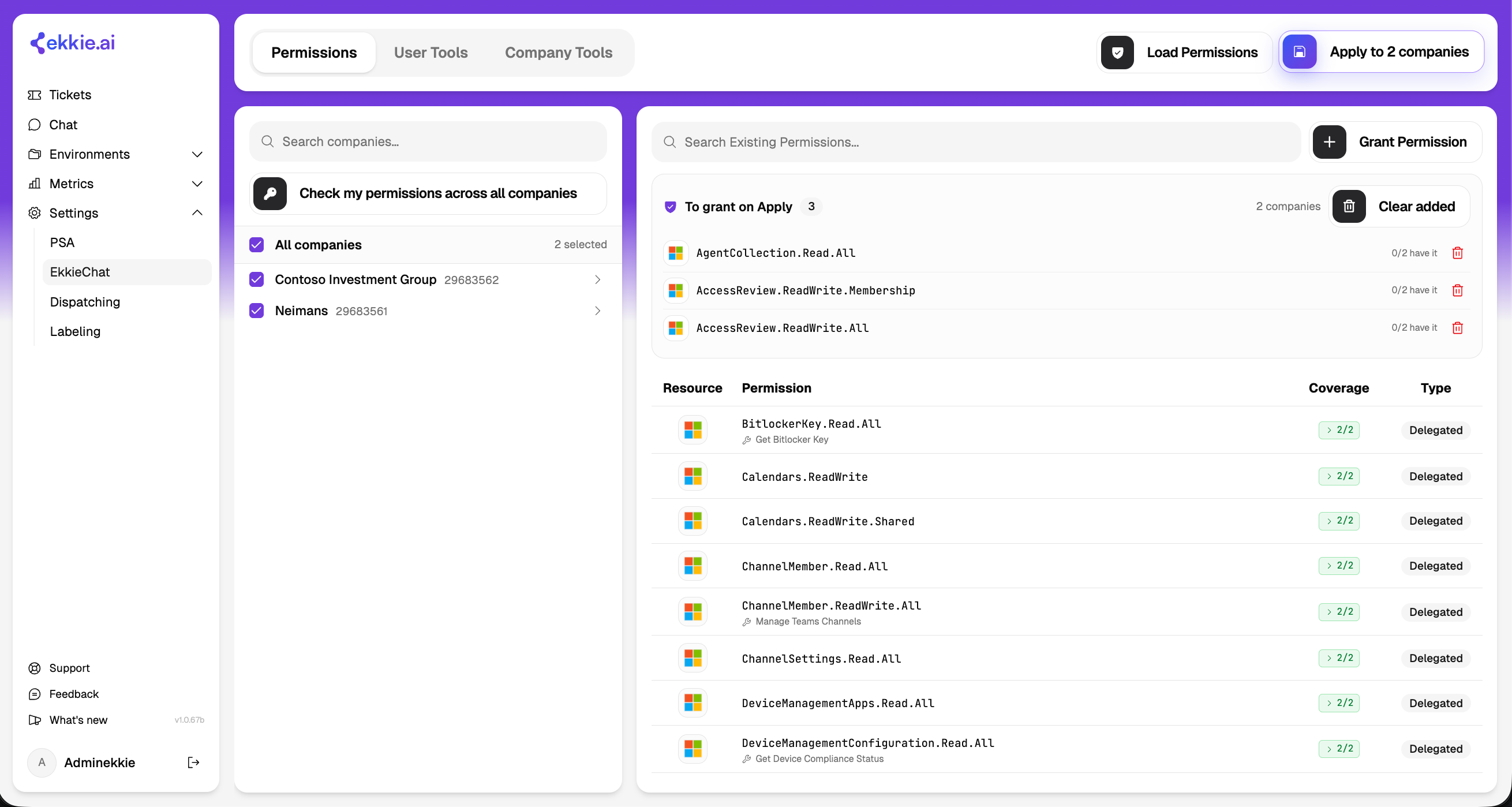
Permissions — grant the Microsoft permissions Ekkie's Enterprise Application needs, across all selected companies companies. Select the companies you want to overview, press ‘Load Permissions‘, it will pull all the permissions from all the Enterprise Applications of those companies, now either click on certain permissions form the list to add them to the ‘To Grant on Apply‘ list, all permissions from that list will be added to all the Enterprise Applications of those companies, or click on ‘Grant Permission‘ button to add a completly new permission to all Enterprise Applications, finally click Apply to N companies and, if you have the clearance they will be granted.
Company Tools — choose which tools are enabled for each company, and which require approval. Click on a Tool so see what is the minimal permissions set required for that tool to be usable by Ekkie, if not granted grant them in the ‘Permissions’ section.
User Tools — choose which tools are enabled for each support engineer, and which require approval.
Applying to many companies (or users) at once
The left panel lists your companies (in Permissions and Company Tools) or your engineers (in User Tools). Select any combination, use All, or search to narrow the list, a running count shows how many are selected.
Every permission or tool shows a coverage count, how many of the selected items already have it. Expand it to jump-select just the ones that have it or just the ones missing it, then apply only to those.
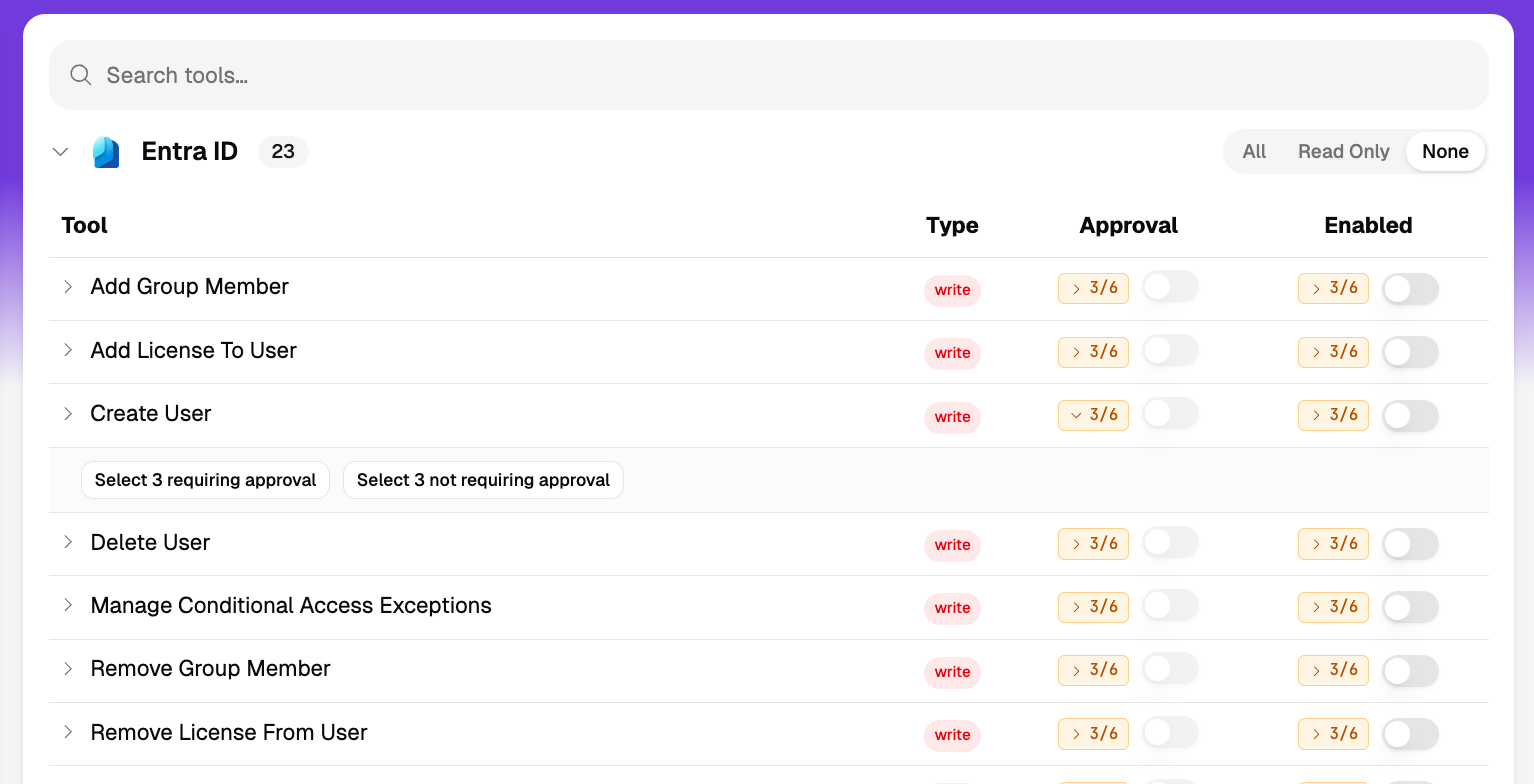

Apply pushes your choices to every selected company or user. Large rollouts run in the background.
Applies are patches, not replacements, only what you toggled is written, so each company and engineer keeps its own distinct settings. Granting is idempotent: anything already in place is skipped, so re-running is always safe.
Enterprise Application permissions
Ekkie performs Microsoft 365 actions on each customer through its own Enterprise Application installed in that customer's Microsoft tenant, which must hold the right Microsoft permissions there. In the Permissions view you:
Build the set of permissions to grant — type to search and pick a suggested match, use the permission picker, or click one from the coverage table. Each queued permission shows how many selected companies already have it.
Load Permissions scans the selected companies and shows what each already holds. Check my permissions probes, per company, whether you have the admin rights to change that tenant — shown as a status: Allowed, No permission (you lack the admin role there), Not consented (Ekkie was never set up in that tenant), Missing permissions, or Tenant not found.
Apply asks for confirmation (it writes directly into each customer's Microsoft tenant), then grants across the selected tenants; companies that share one Microsoft tenant are handled once. The results group anything needing attention by cause, each with a one-line fix — correct the tenant ID, open an admin-consent link, or ask a tenant admin for access.
Opening a single company shows every permission Ekkie currently holds there (each tagged with the tools that use it), where you can grant or revoke individual permissions.
Good to know: this grants permissions to an app that is already admin-consented in the tenant — it cannot create that first-time setup. Where Ekkie was never consented, open the provided consent link (a tenant admin completes it) first. Changing permissions requires a directory admin role (for example Global Administrator or Application Administrator) in the customer tenant; failures are isolated per company, so fix the flagged ones and re-run.
Tool access
Tools are listed by product category (Entra ID, Exchange Online, Defender, Intune, Teams, Autotask, Ekkie, Web Search), each collapsible with All / Read Only / None shortcuts.
Each tool shows a Type badge —
read(does not change the tenant) orwrite— an Enabled switch, an Approval switch, and its minimum required Microsoft permissions.The switches are coverage-aware across your selection (all, none, or some of the selected have it), and toggling one sets the target for every selected company or user at once.
Turning on a tool that makes changes (a
writetool) switches on its approval requirement by default. Approval can only be set on an enabled tool.Microsoft documentation-search tools are always available to Ekkie and don't appear in the list. Changes take effect for new conversations shortly after you apply them.
How company and user tool settings combine
Tool access is set in two places, per company and per engineer, and the two combine for each conversation:
Available = both must agree. A tool can be used in a conversation only if it is enabled for both that company and that engineer. Enabling it for a person does not grant it in a company where it is off, and vice versa.
Approval = either can require it. A tool requires approval in a conversation if either the company or the engineer marks it as requiring approval (in addition to the always-approval tools above). Approval only ever applies to tools that are actually available.
Good to know: because availability is the overlap of the two, a tool can look enabled in one view but still not work if the other view has it off, the combined result is not shown on this page. Managing User Tools requires the Users Management role. A company or engineer that has never been configured starts with nothing enabled;
Companies page (Environments → Companies)
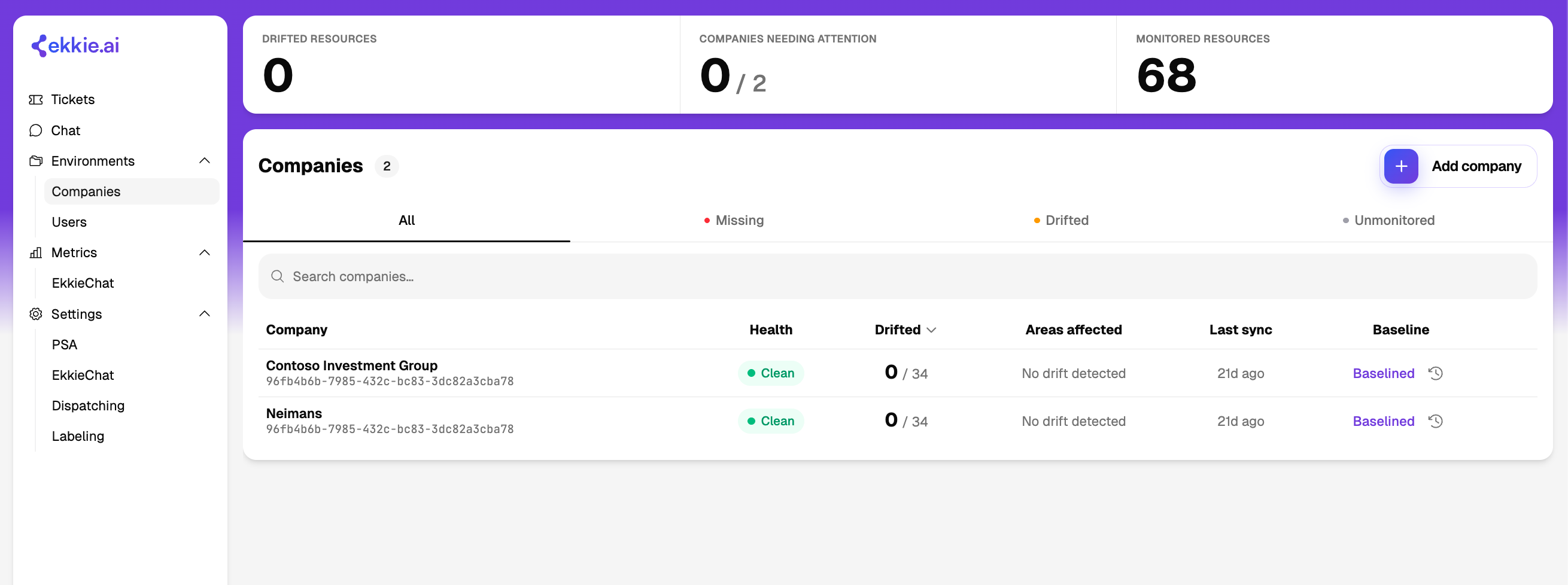
Each customer company has a row showing its name, PSA company ID, and Microsoft tenant ID.
The Microsoft tenant ID scopes every M365 action Ekkie performs on that company's tickets.
Search by name; create, edit, or delete companies.
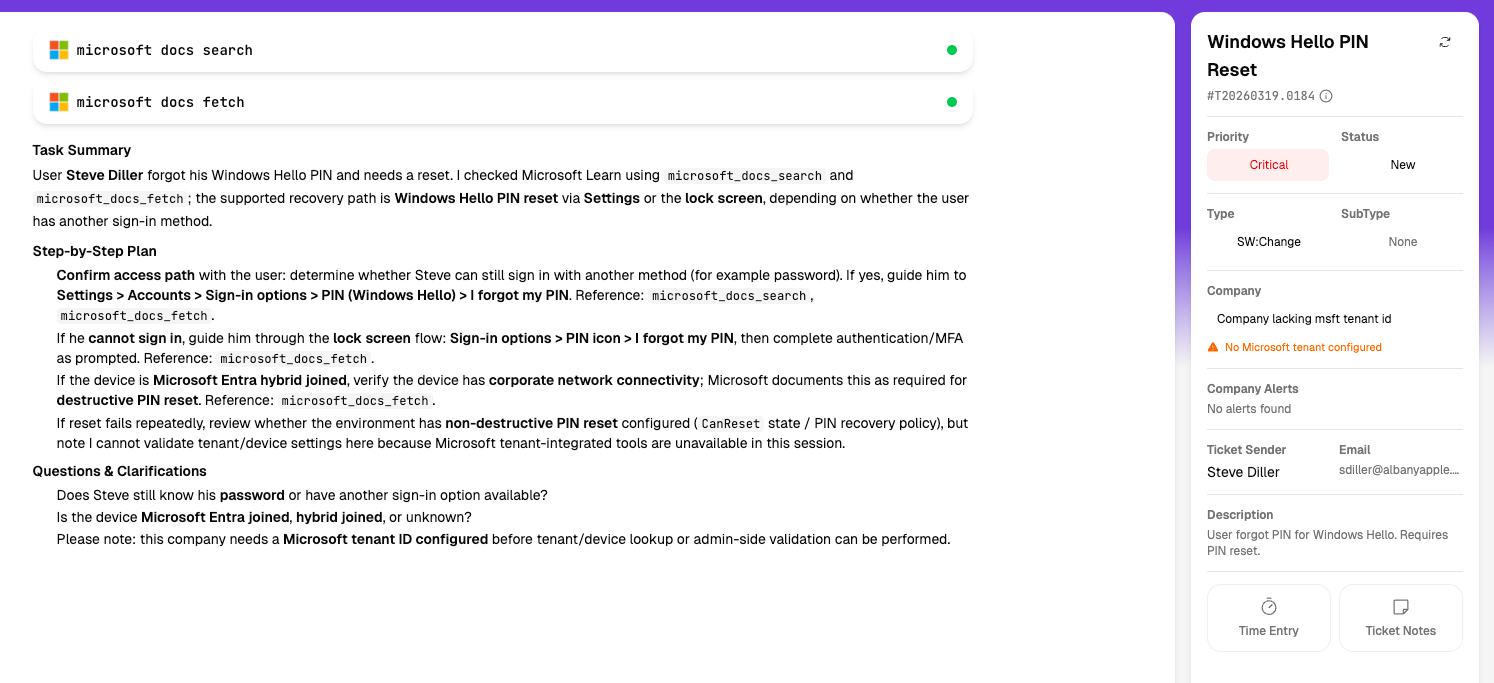
Companies with no microsoft tenantId : we support setting up companies in this way, Ekkie will not have access to any tools except the documentation tools for tickets belonging to such companies.
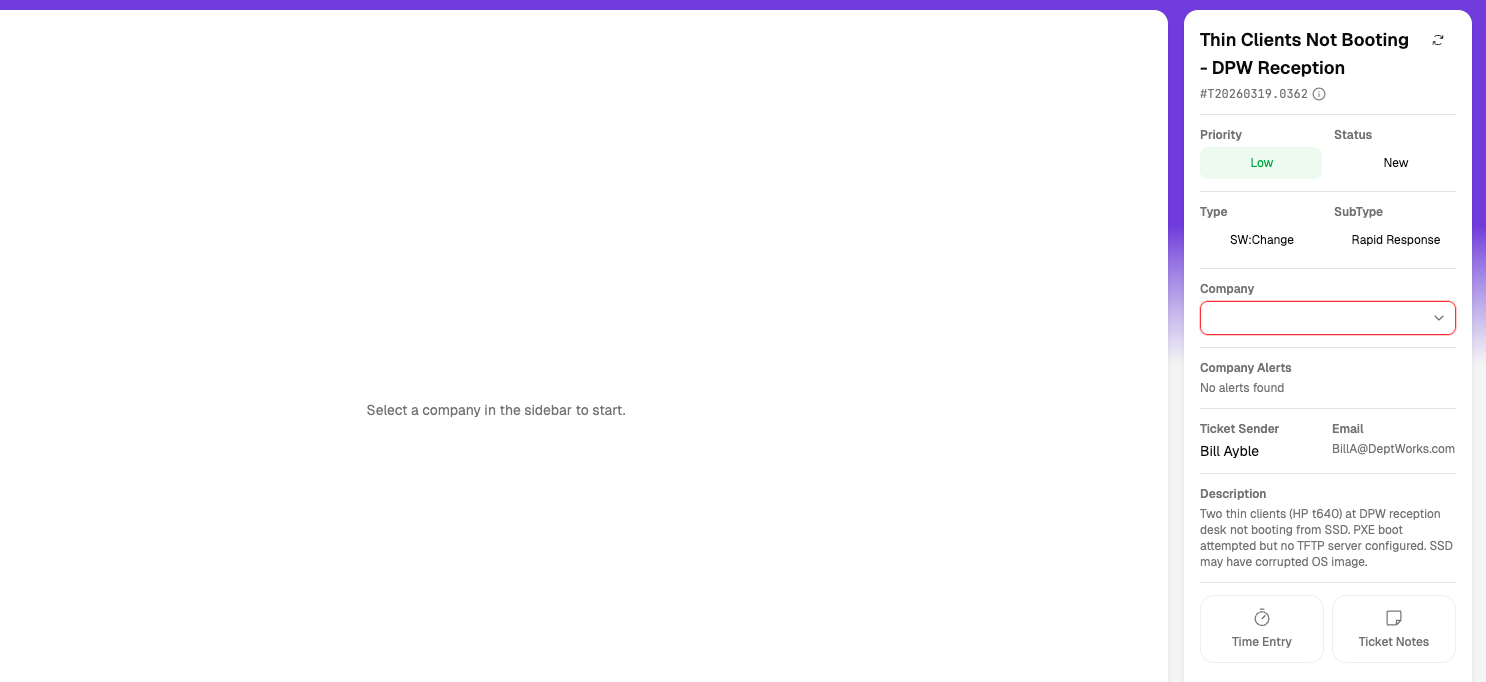
Multiple Microsoft tenants ids for the same Psa Id : in this scenario Ekkie will not automatically create plans and will not go through resolving the ticket unless a support engineer specifically selects the company this ticket should be resolved in from the ticket sidebar.
Trust Center
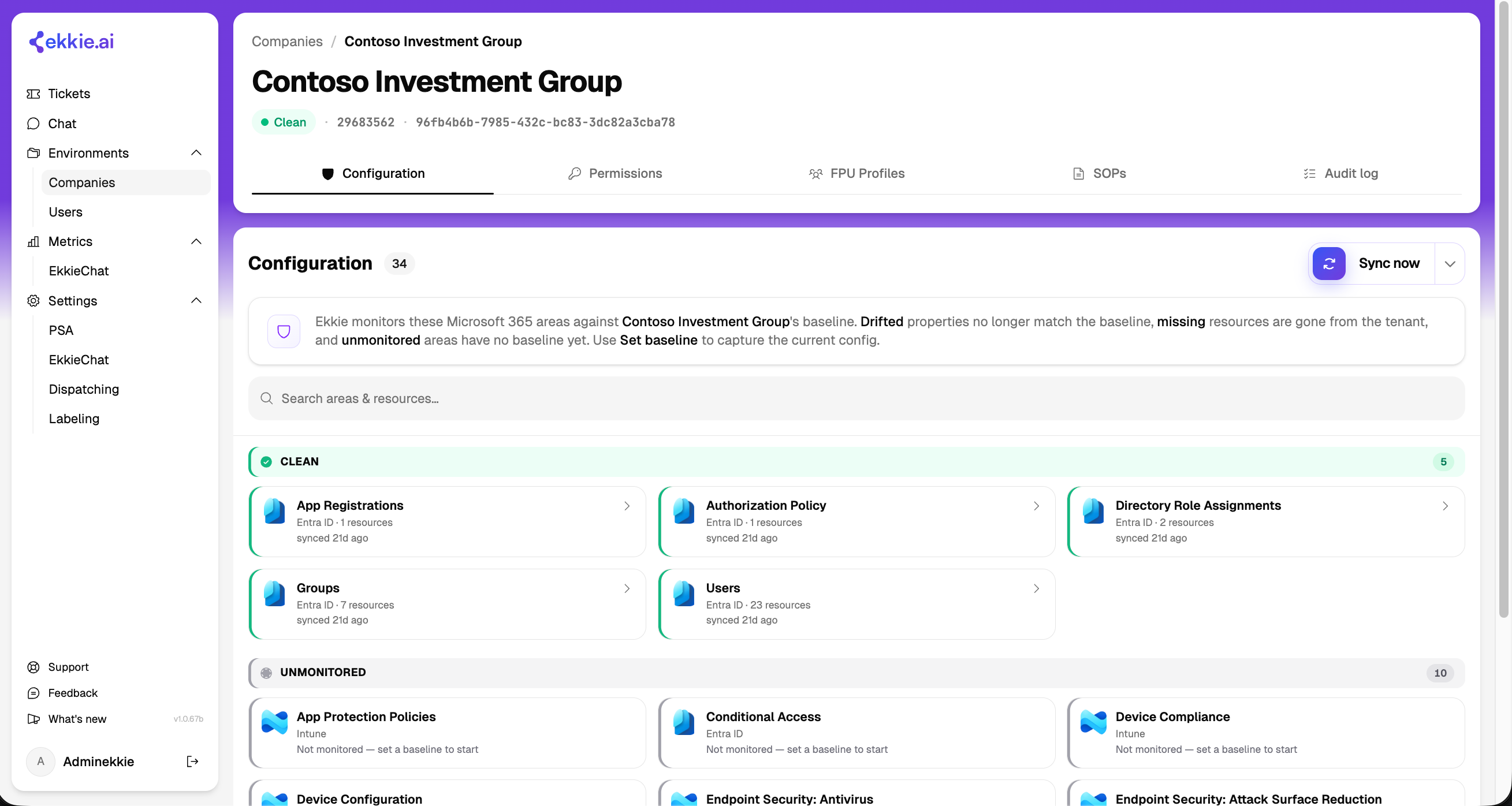
The Trust Center (the Configuration tab on a company's page) captures a trusted baseline of a customer's Microsoft security and configuration posture, then compares the live tenant against it. It surfaces drift (a monitored setting no longer matches the baseline) and missing resources, and for supported areas lets you restore a setting back to its baseline. Every baseline and restore is recorded in an append-only audit log.
Everything is keyed to the customer's Microsoft tenant, so companies that share a tenant share one baseline, one set of results, and one history. A company with no Microsoft tenant linked has no Trust Center.
Set baseline — capture the current state of the areas you select as the trusted version to measure against. Baselines are versioned and immutable; setting a new one keeps the previous version in history.
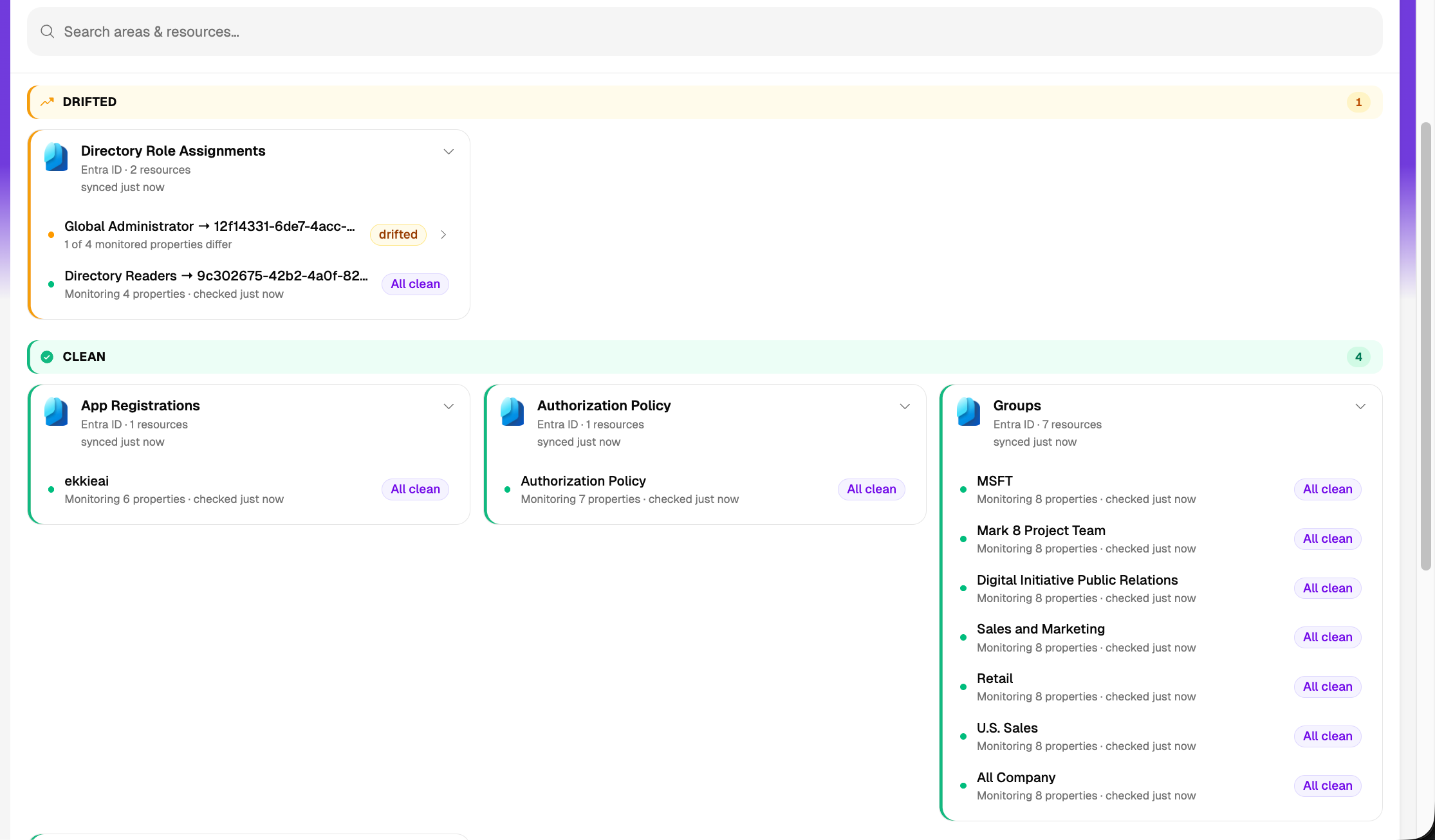
Sync — reads the live tenant and compares each baselined resource against the baseline, marking it clean, drifted, or missing, with the exact differences and, where available, who changed it and when. Sync is the only action that reads from Microsoft; nothing syncs on a schedule, so run "Sync now" to refresh. Each resource shows how recently it was synced (green under 30 minutes, amber under a day, muted beyond).
Restore (Revert) — writes baseline values back to the live tenant. You can revert everything drifted for a company, all drifted properties on one resource, or a single property. Fields that cannot be safely written back show a Monitor-only chip. "Revert all" asks for confirmation and warns that it writes to the tenant; every restore is logged with the before and after values and the result.
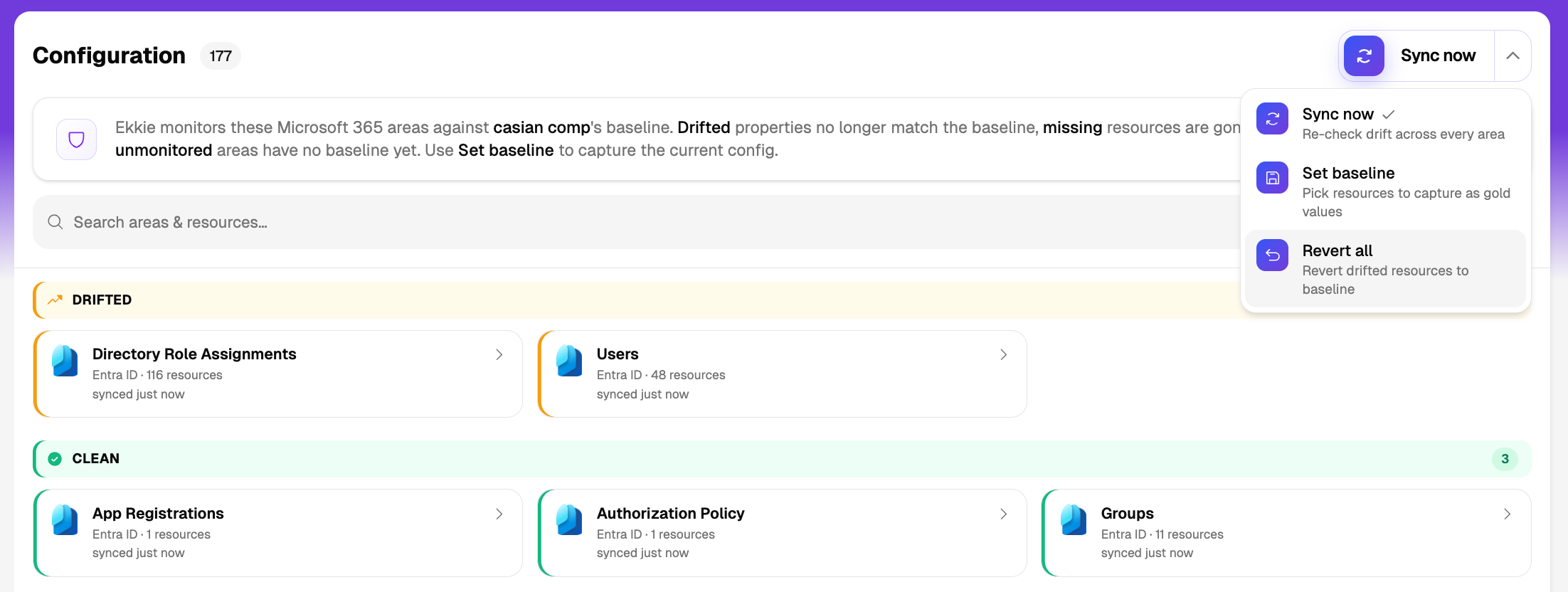
What the Trust Center monitors today (Entra ID and Intune):
Entra ID
Users — display name, account enabled, job title, department, usage location, office location, first and last name, user principal name, and email. Most fields are restorable (email is read-only, and the user principal name cannot be restored for directory-synced users).
Groups — name, description, mail-enabled, security-enabled, visibility, group types, dynamic membership rule, and group-based license assignments. Name, description, visibility, and the membership rule are restorable; the rest are monitor-only.
Conditional Access policies — name, state (enabled, disabled, or report-only), and the full condition and grant fingerprint (users, groups, apps, controls, client app types). Name and state are restorable — for example, re-enabling a policy that was silently disabled — while the conditions are monitor-only.
Authorization policy — the tenant-wide external-collaboration and self-service settings: who can invite guests, email-based subscription sign-up, self-service password reset, the legacy MSOnline PowerShell block, the default guest role, name, and description. All restorable.
App registrations — name, sign-in audience, identifier URIs, redirect URIs, requested API permissions, and tags. Most are restorable except redirect URIs; restoring requested permissions changes only what the app asks for, not what has been admin-consented.
Directory role assignments — who holds which directory role (for example Global Administrator). Monitor-only: an unexpected or removed privileged assignment is flagged, but you fix it by hand.
Intune (all monitor-only — detected here, fixed in the Intune console):
Device compliance policies, device configuration profiles, Windows Update rings, Mobile Threat Defense connectors, and app protection policies.
Endpoint Security policies: Antivirus, Firewall, Disk Encryption, and Attack Surface Reduction.
Not yet covered: Exchange Online, SharePoint, Teams, and Defender are not monitored today — only Entra ID and Intune.
Things to watch for
Results are only as fresh as the last sync. Nothing syncs automatically — run Sync before relying on the board; the recency dots show how stale each resource is.
Intentional changes show as drift until you set a new baseline. Re-baseline after a planned change; the old baseline stays in history and can be re-activated.
Monitor-only settings cannot be restored — role assignments, all Intune and Endpoint Security areas, Conditional Access conditions, and a few user, group, and app fields are flagged and must be fixed manually.
Restore cannot recreate a deleted resource. "Missing" means it was removed from the tenant; restore only updates existing resources, so deletions must be re-created by hand.
Permissions matter. Syncing Intune areas and seeing who changed what require the relevant Microsoft read permissions in the customer tenant; without them those areas or the change attribution are unavailable. Attribution is always best-effort and never blocks a sync.
A restore can still be rejected by Microsoft (permissions, a read-only object, or a conflict). The audit log records the exact result and the resource stays drifted.
Companies that share a tenant show identical numbers — drift is measured per Microsoft tenant, by design.
Company SOPs
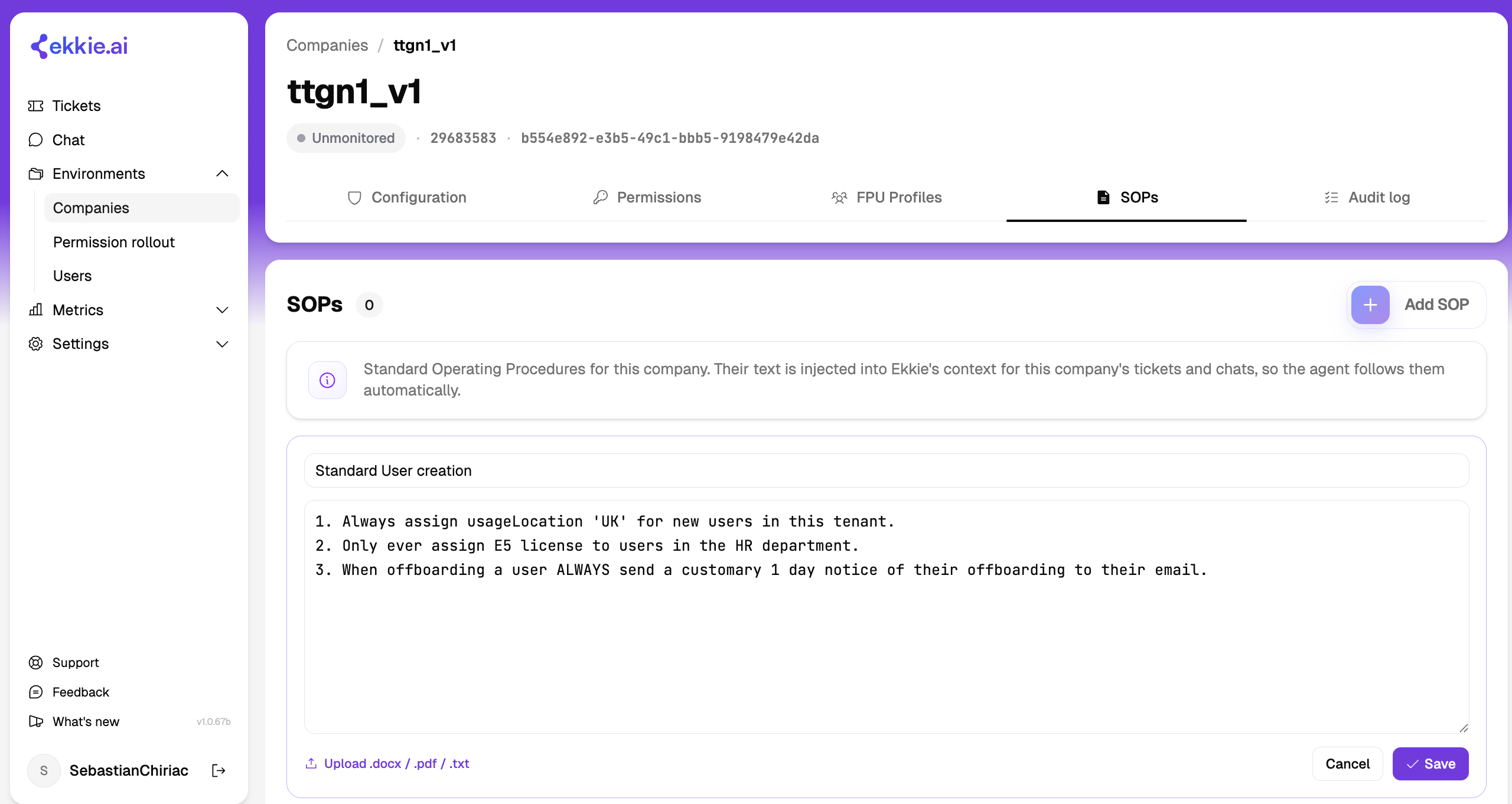
A Standard Operating Procedure (SOP) is a plain-text instruction document you attach to a specific company, capturing how that customer wants support handled — naming conventions, approval rules, license standards, escalation preferences, and so on. Ekkie reads a company's SOPs automatically on every run, so engineers do not have to restate the customer's rules in each chat.
Managing SOPs — on a company's SOPs tab, give each SOP a title and body. Anyone can view them; creating, editing, and deleting require the EkkieChat permission.
Upload & extract — upload a .txt, .md, .docx, or .pdf and Ekkie pulls the text out in your browser and fills in the body. The original file is never stored — only the extracted text is saved.
How Ekkie uses them — whenever Ekkie works on that company (ticket chats, automatic plan generation, and assistant chats once a company is attached), all of the company's SOPs are attached as background guidance for that run. They are applied fresh every time and are not written into the visible conversation, so edits take effect on the very next message with no need to restart a chat.
Scope — SOPs apply to one company only and never leak to another. A company-less assistant chat has no SOPs until you attach a company.
Limits — a single SOP is capped at roughly 10,000 tokens (about 40,000 characters), and all of a company's SOPs together at roughly 50,000 tokens (about 200,000 characters). Because every SOP loads on every run, keep them concise and action-oriented — bloated SOPs eat into the working context and can crowd out the ticket itself.
FPU System
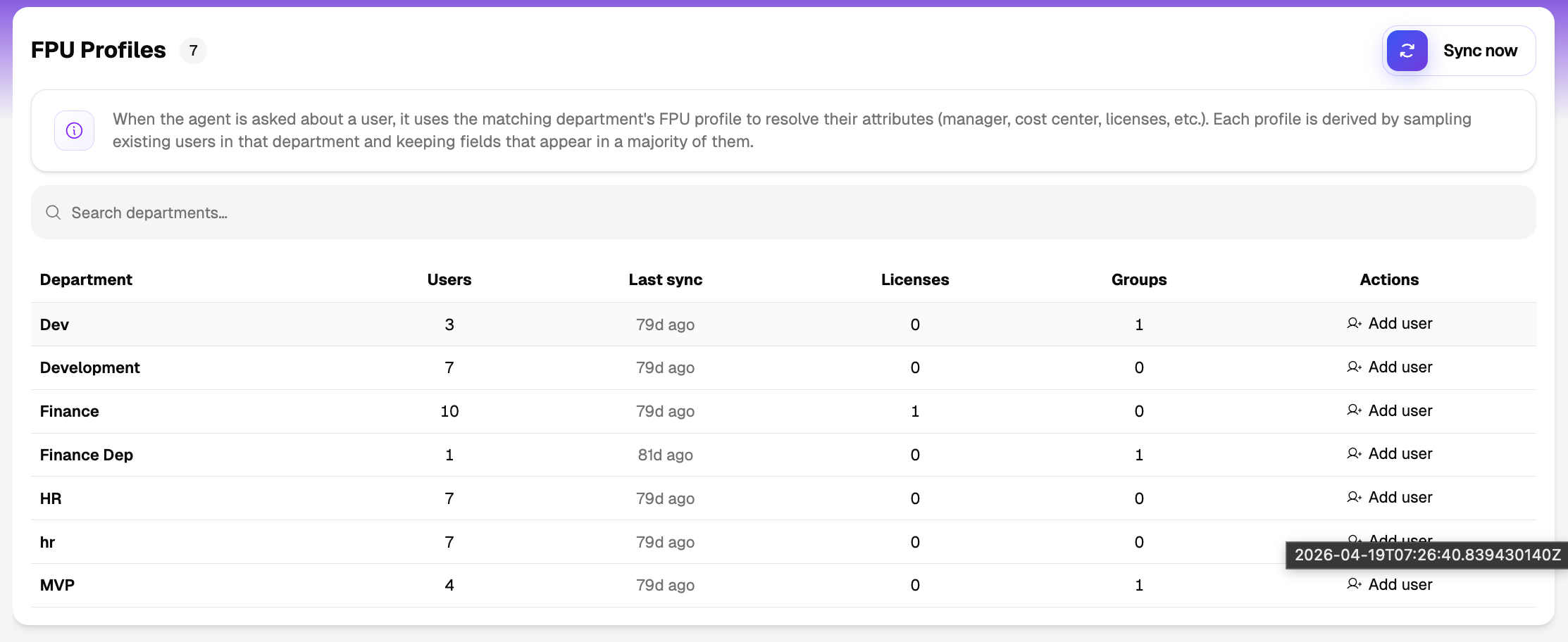
Click into a company to see its details and the FPU panel below.
Sync Now — reads that customer's users from M365, groups them by department, and computes the typical license, group, and job-title pattern per department with a confidence score.
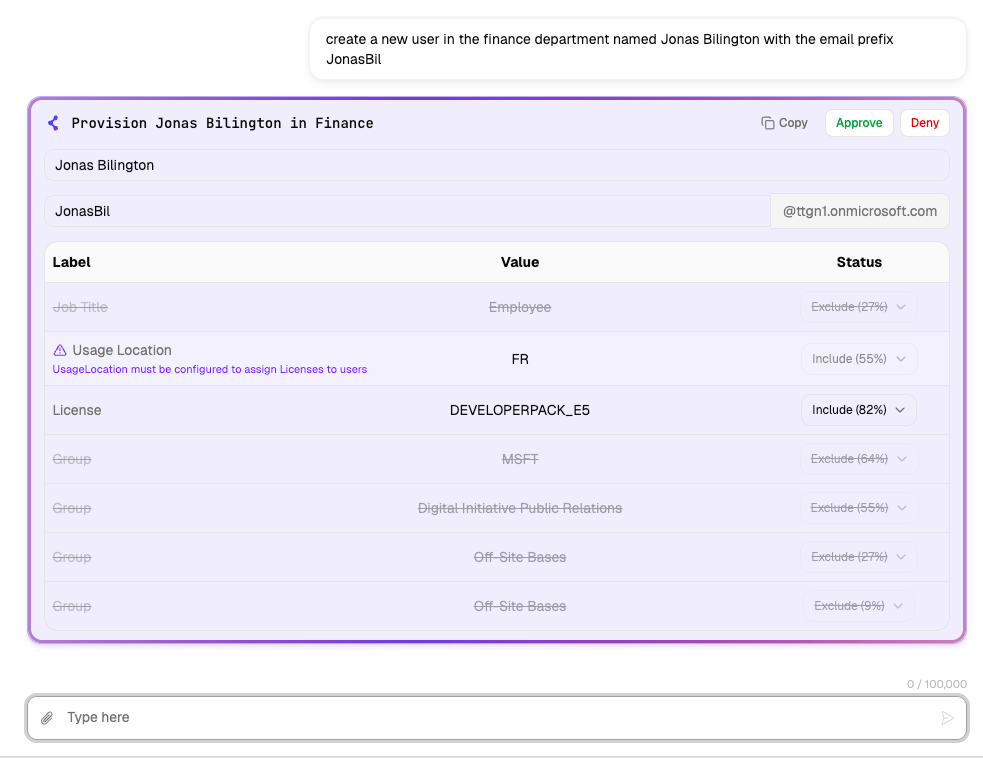
Add user — create a new user pre-filled with the patterns of the department you pick. Include or exclude individual licenses and groups before creating, Ekkie calculates common an attribute is for a specific Department, it suggests to include it for a frequency of > 75%, this can be overitten manually when creating a user in that Department.
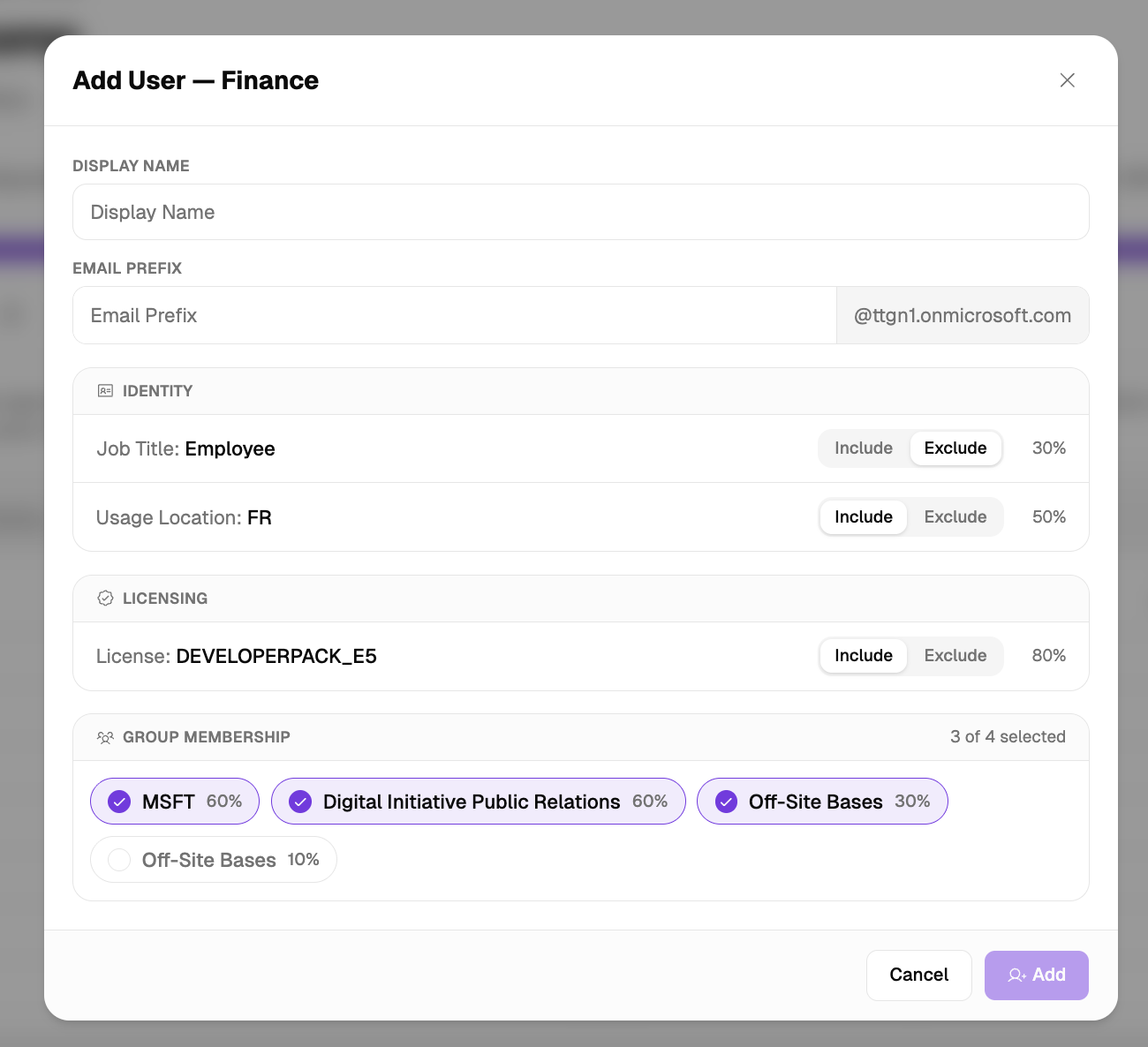
FPU tool inside chat — by enabling the “Provision User From Fpu Profile“ in the tool settings, the support engineers will have access to the FPU functionality seemlessly in the EkkieChat interface.

Good to know
FPU learns only from existing users — a brand-new or empty department has nothing to sample, so it cannot help with the very first hire in a department.
Small departments give noisier confidence scores; the more existing users, the more reliable the pattern.
A profile is a snapshot from the last sync, not live — re-run Sync before onboarding if licenses, groups, or org structure have changed.
A usage location is required before Microsoft will assign licenses, so it is kept on automatically whenever you include a license.
Profiles are grouped by each user's Department attribute — keeping that field clean and consistent gives better profiles.
Metrics
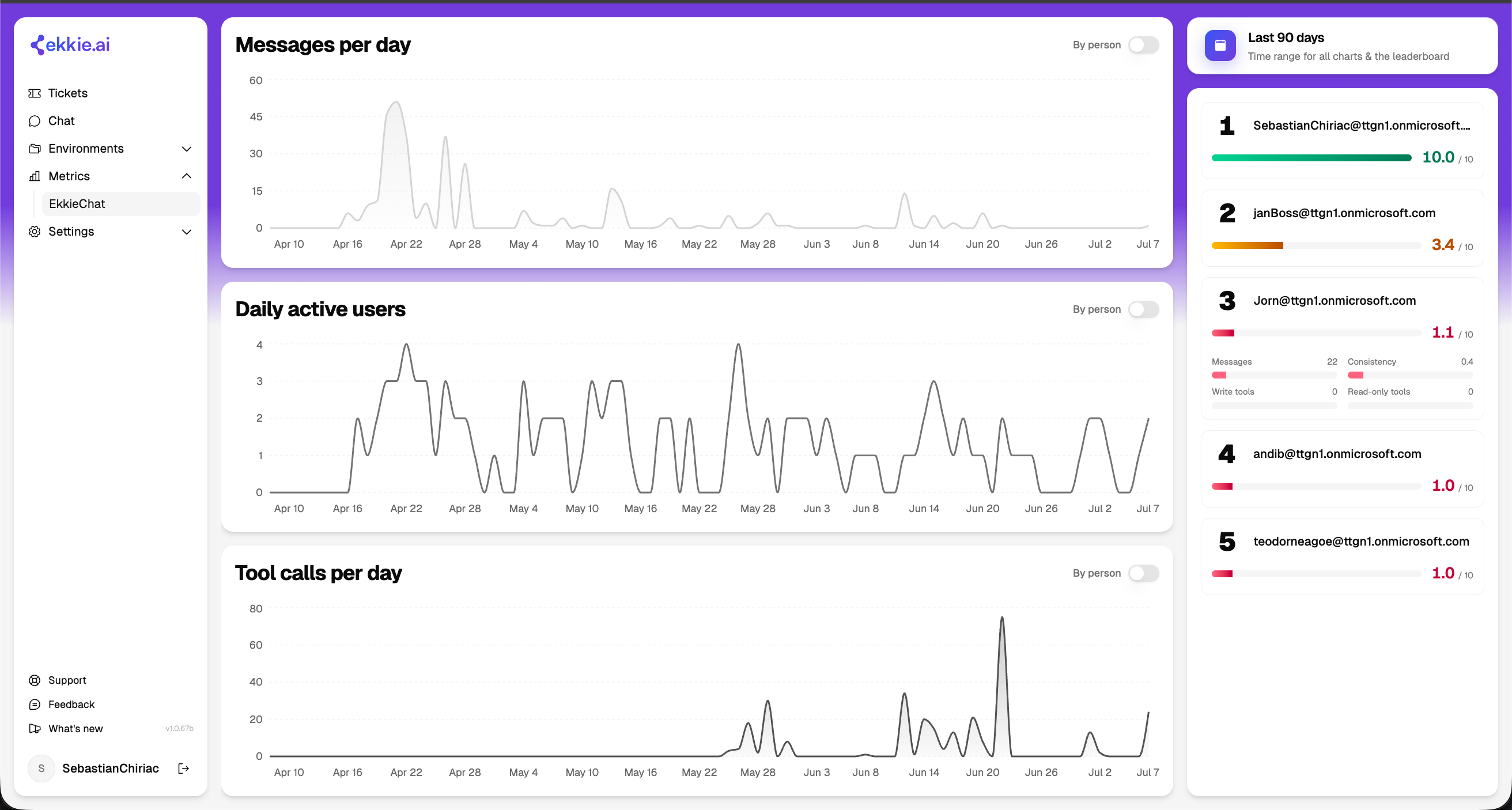
The Metrics page is your overview of how your team is using Ekkie. At a glance it answers how much your engineers chat with Ekkie, how many use it day to day, how much real work Ekkie is doing on tickets, and who your most engaged users are. It is available to admins with the EkkieChat permission and only ever shows your own organization's activity.
One time-range selector (default last 7 days, with 30 / 90-day presets and a custom range) drives all three charts and the leaderboard together. Each chart has a By person toggle to switch from a single team-wide trend to one line per person (the top 10 most active), so you can drill from the team view into individuals.
The three charts (one point per day across the selected range):
Messages per day — how many chat messages your team sent to Ekkie each day. A measure of raw engagement; days with no activity show as zero.
Daily active users — how many distinct people used Ekkie each day (each person counts once per day). A measure of adoption and reach rather than volume.
Tool calls per day — how many actions Ekkie actually performed (every time it ran a tool on your behalf) — the closest measure of Ekkie's real output. Each day is split into approval-gated actions (the sensitive ones an engineer signed off) and read-only actions; the chart shows the combined total and reveals the breakdown on hover.
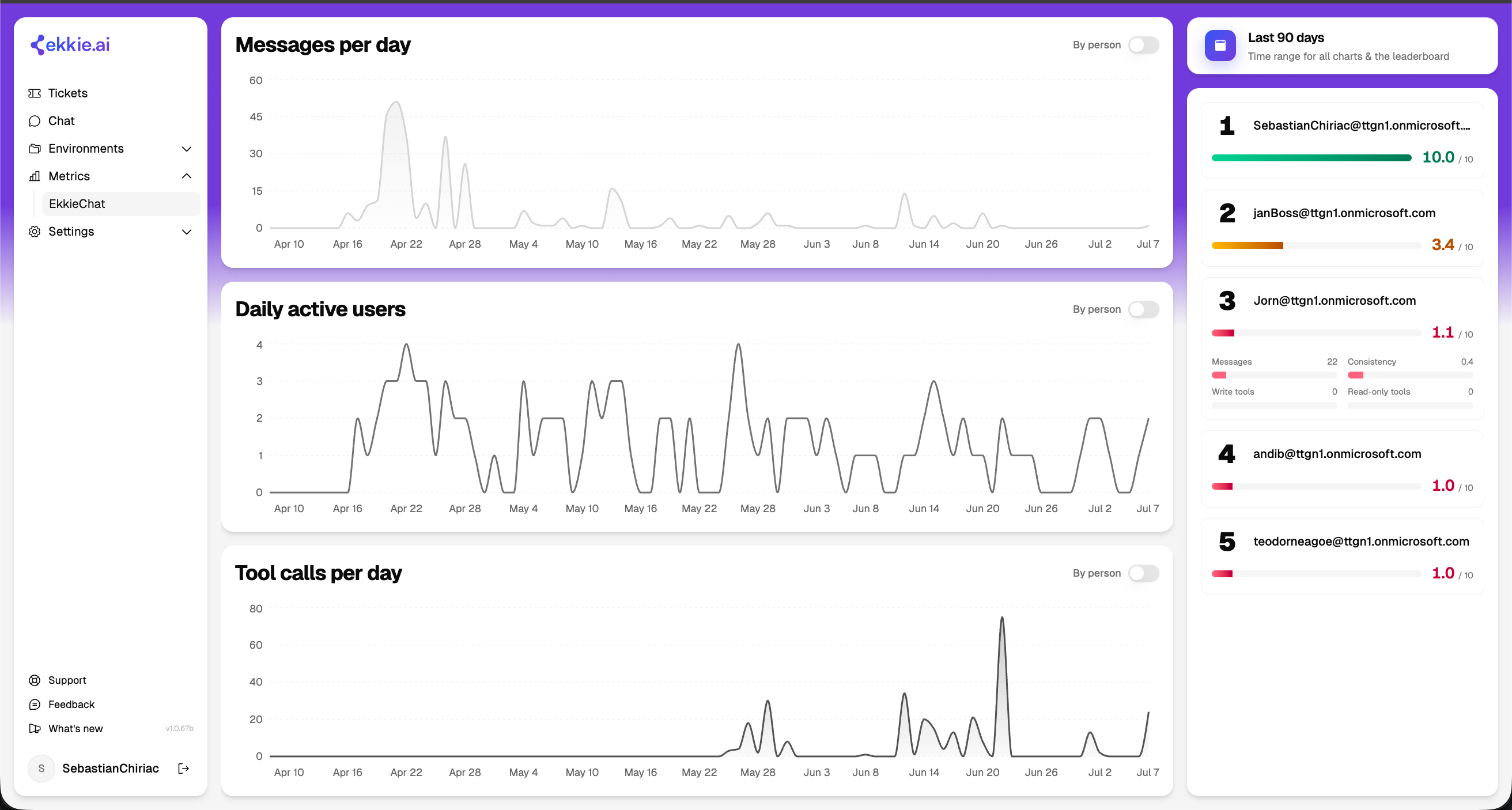
The leaderboard ranks your engineers by an overall engagement rating from 1 to 10 (most engaged at the top, up to the top 24), shown as a colored bar — red, amber, or green for the bottom, middle, and top tiers. The rating blends four behaviors: messages sent (the largest factor), day-to-day consistency (showing up on consecutive days), approval-gated actions, and read-only actions. A few things worth knowing about the scoring:
It is scored day by day and averaged across the whole range, including quiet days — so steady daily use beats a single big burst.
Consistency rewards consecutive-day usage, treating a full working week of activity as a perfect streak.
The score is relative: the top person is set to 10 and everyone else is proportional, so "10" means the most engaged person in this period, not an absolute target — don't compare the raw number across different date ranges.
Click any row to expand a per-metric breakdown (messages, consistency, approval-gated actions, read-only actions), each shown against the strongest person on that metric.
How it helps. Daily active users tells you whether adoption is growing; messages per day shows how heavily Ekkie is used and spots quiet versus busy periods; tool calls per day shows how much real work Ekkie is doing and how much of it was sensitive/impactfull.
Good to know: the numbers come from Ekkie's analytics and are bucketed by day in UTC, so late-evening activity in some time zones can land on the next day. The leaderboard counts only complete past days (it ignores today's in-progress activity, while the charts include today), and only identified users (those with a known email) are counted. Very recent activity can take a short time to appear.
Permissions
The EkkieChat permission unlocks Tools settings, Companies and FPU, this permission is meant for Administrators of the EkkieChat environment.
The Support_Engineer permission unlocks the ticket dashboard and the chat panel. This is the role you give every engineer who works in Ekkie day-to-day. Each Support Engineer must have a PSA resource ID on their user record.
Once your admin has the EkkieChat permission, they can grant Support Engineer to teammates themselves, no need to go back to Ekkie support.
Potential issues
Credentials not configured on Test Connection — contact Ekkie support.
A tool you'd expect is missing from chat — switch it on under Tools.
"User not registered" on login — your admin needs to add the user from the Users page.
“Admin consent was not granted for this company, contact your organization's admin about this company.” — the Enterprise Application for this company has no permissions granted to it, thus Ekkie is not authorized to interact with this company.
“Microsoft tenant not found. The customer tenant ID may be invalid (AADSTS90002).“ — microsoft tenant id configured for this company is incorrect.
Trust Center / Configuration tab asks you to link a tenant — the company has no Microsoft tenant set; add one on the company record.
A Trust Center setting will not restore ("Monitor-only") — that field is detection-only; fix it directly in Microsoft.
Related
Was this helpful?
Still need help? Ask the team