Roles & Authorization in Ekkie Platform
Written By jillian dubbeling
Last updated 3 months ago
The five roles
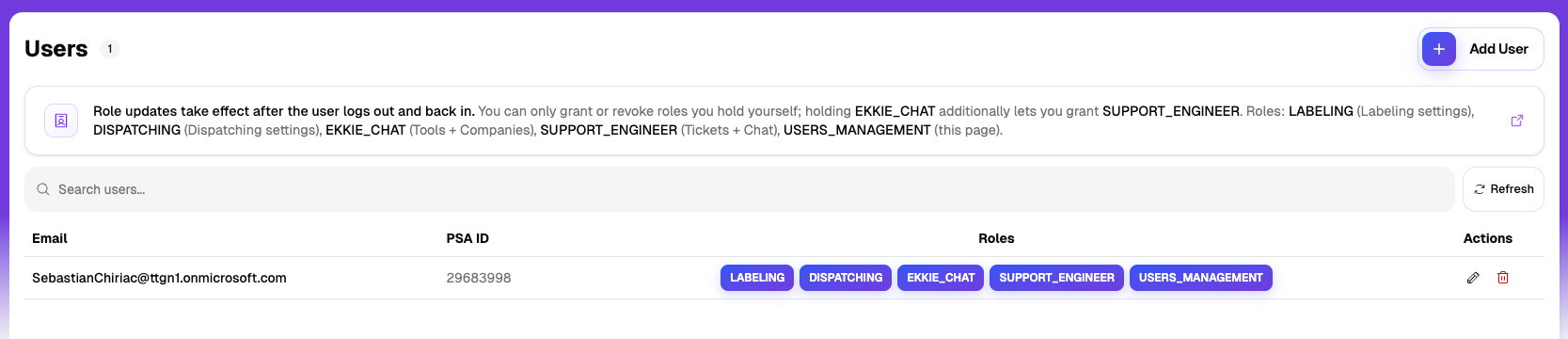
Labeling — unlocks the Labeling settings page (label editor, evaluations, ticket statuses, the Labeling PSA connection).
Dispatching — unlocks the Dispatching settings page.
EkkieChat — unlocks the EkkieChat settings page (tools), the Companies page, and the FPU provisioning workflow. Holding EkkieChat also implicitly lets you grant the Support Engineer permission to teammates, even if you don't hold Support Engineer yourself.
Support Engineer — unlocks the Tickets dashboard and the chat panel inside each ticket. This is the day-to-day engineer permission. Anyone with this permission must have a PSA resource ID on their user record so their time entries are attributed correctly.
Users Management — unlocks the Users page. Required to create or delete users and grant or revoke any permission to users.
How upgrading works
Most teams turn on Ekkie's products one at a time: Labeling first, Dispatching next, EkkieChat last.
When you sign up, Ekkie support seeds your first admin with the Labeling + Users Management permissions. That admin invites the rest of your Labeling team from the Users page.
When you upgrade to Dispatching, Ekkie support adds the Dispatching permission to your admin. Your admin can then pass it to other Dispatching users themselves.
When you upgrade to EkkieChat, Ekkie support adds the EkkieChat permission to your admin. From that point on, your admin can also create Support Engineer users themselves.
Granting permissions (Users page)

Anyone with the Users Management permission can open the Users page.
A permission badge is editable only when you hold that same permission yourself. Permissions you don't hold appear greyed out, click the ‘Edit‘ icon on the row of the person you want to grant permissions to in order to start modifying their Roles.
Special case: holding EkkieChat lets you grant or revoke Support Engineer too, even though you don't carry Support Engineer yourself. This is how the customer admin onboards engineers without going back to Ekkie support.
Add a new user with the "Add User" button. Enter their email, PSA ID, and pick which permissions to grant. They'll be able to log in next time they visit Ekkie.
The "grant only what you have" rule
You can only grant permissions you hold yourself. Trying to grant a permission you lack returns an error.
The same rule applies to revoking — you can only revoke permissions you hold.
This keeps permission distribution honest: an EkkieChat-only admin can hand out EkkieChat and Support Engineer (via the special case above), but can't escalate someone else to Labeling or Users Management.
Deactivating and deleting users
Deactivating a user (setting them inactive) and deleting a user both follow the grant rule — you can only do it if you yourself hold every permission the target currently has.
If a teammate holds permissions you don't, ask someone with those permissions to deactivate them, or contact Ekkie support.
Lockout safety
If you're the only person on your team with the Users Management permission and you try to remove it from yourself, Ekkie warns you first. Removing it would lock everyone out of the Users page — only Ekkie support can restore access in this scenario.
Common questions
Why can't I see the Companies page? — You don't hold the EkkieChat permission. Ask your admin to grant it.
Why is a permission greyed out on the Users page? — You don't hold that permission yourself, so you can't grant or revoke it.
Why can't I deactivate someone? — They hold a permission you don't. Ask a teammate (or Ekkie support) with the missing permission.
Can I have multiple admins? — Yes. Grant Users Management to as many teammates as you want.
Where do permission changes show up? — Right after the user logs out and back in. The list is refreshed at login.
Related
Was this helpful?
Still need help? Ask the team