Ekkie Labeling Documentation
Written By Casian
Last updated 3 months ago
Ekkie Labeling auto-classifies every new PSA ticket on creation across all picklist fields: Issue Type, Sub-Issue Type, Priority, Ticket Category, Ticket Type, Queue. It logs a configurable time entry on every labeled ticket so the work is auditable in your PSA.
Labels editor
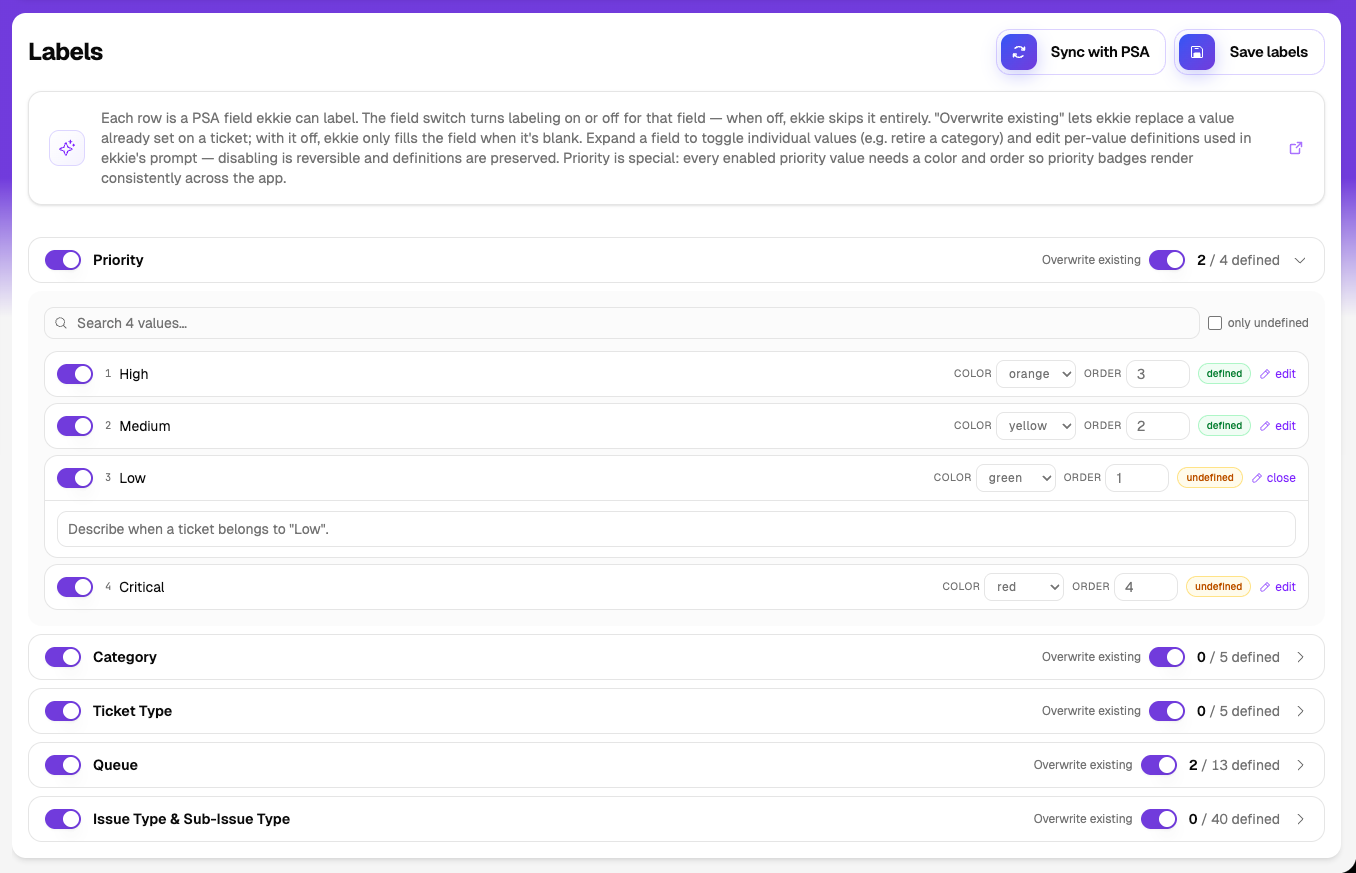
Field switch (left of each row) — turns labeling on/off for an entire field. OFF means Ekkie skips that field completely; the field stays untouched on every ticket. ON means Ekkie picks from the enabled values for that field. Example: turn off the whole "Ticket Type" field if your team doesn't want Ekkie to set it.
"Overwrite existing" toggle (per field) — controls what happens when a value is already set on the ticket.
ON = Ekkie replaces the existing value. OFF = Ekkie only fills the field when it's blank. Default OFF.
Per-value switch (inside an expanded field) — disable a single value (e.g. "Hardware – Laptop") so Ekkie never picks it, while the rest of the field still works.
Per-value definition — the free-text box that tells Ekkie when this value applies. Clearer definitions = better picks. Counter shows "X / Y defined" per field.
Priority is special — every enabled priority value needs a color and a display order (for example 1=Low, 2=Medium, 3=High, 4=Critical) so priority badges render consistently across the app (this functionality is mainly used in EkkieChat). Other fields don't require this.
"Sync with PSA" — pulls in new picklist values added in Autotask since you last configured Labels. AutoTask only.
Save labels — top-right; persists the entire labels configuration.
Ticket Statuses
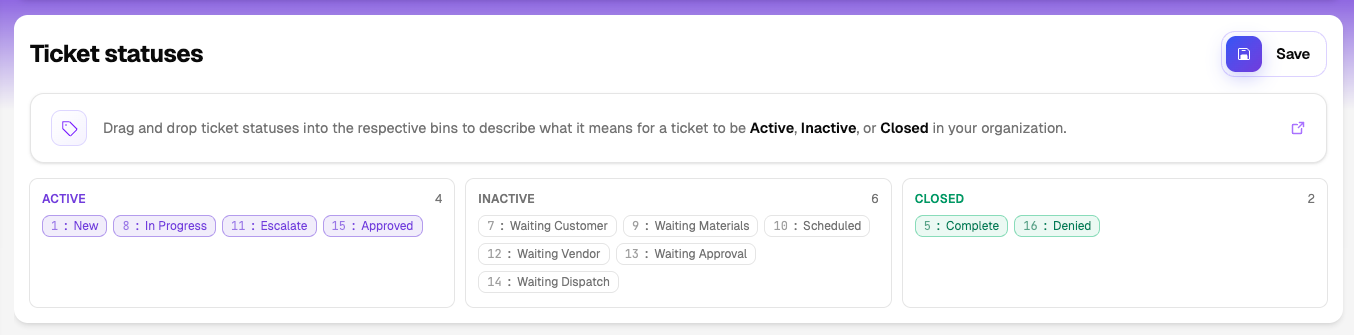
Drag-drop your PSA statuses into Active, Inactive, and Closed bins.
Defines what "closed" means for the Eval sample, only Closed tickets get sampled.
Red chip with ✗ = a status ID you previously classified is no longer in your PSA picklist; drag to Inactive to clean it up.
Save button at the top of the island.
Evaluations
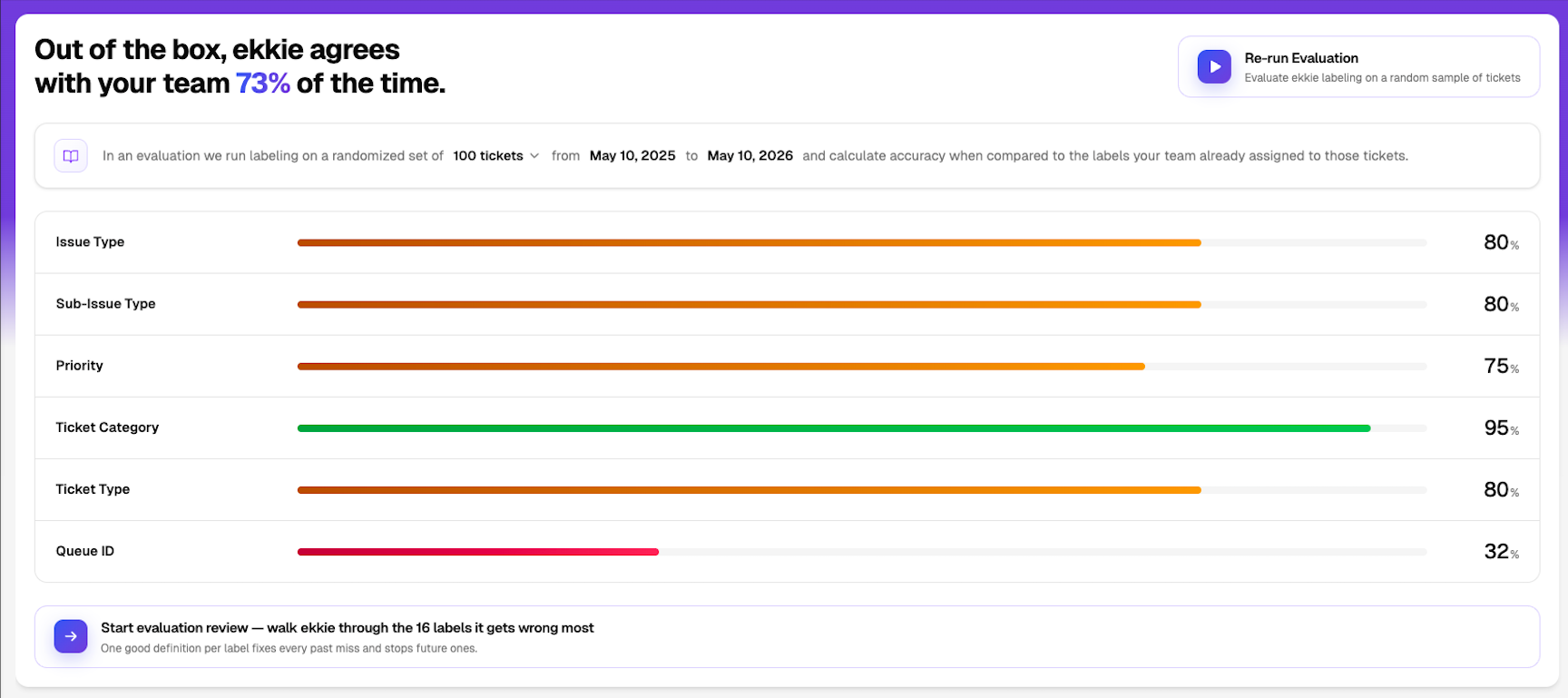
Runs Ekkie on a random sample of past closed tickets and measures agreement vs. your team's actual labels.
Sample size: 20, 50, 100, 200, 400, or 800 (inline dropdown).
Date range: any window of past dates; defaults to the last 365 days, ending yesterday.
Result: overall agreement % plus a per-field accuracy bar.
Sample size and date range can be edited inline before each run.
Teach — after an evaluation
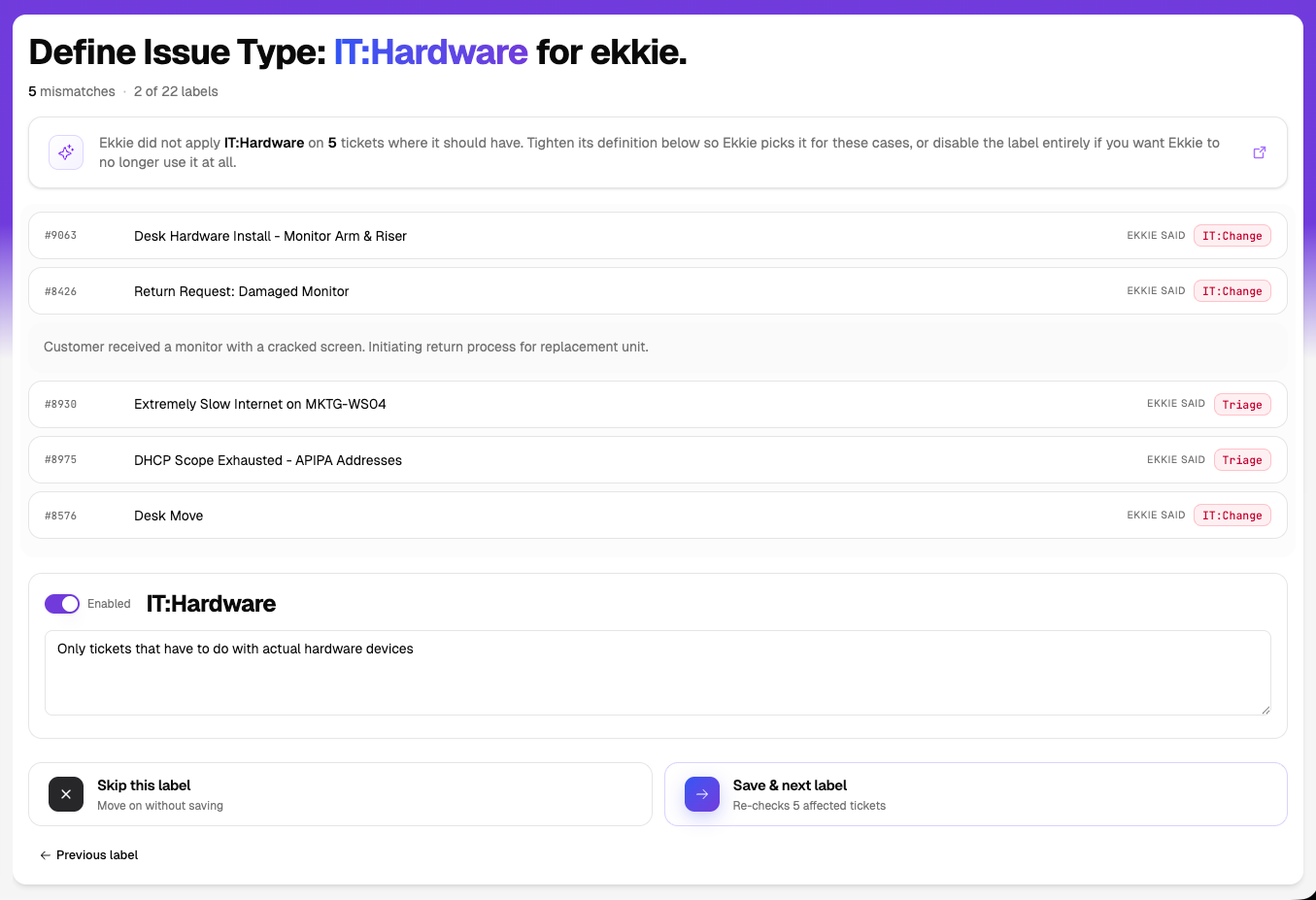
"Start evaluation review" walks you label-by-label through the values Ekkie missed most.
Each step shows: the missed tickets (expandable cards with title + description), the "Ekkie said" badge with Ekkie's pick, and a definition box for tightening.
Per-step controls: Enabled switch (turn this value off entirely), definition textarea, Skip this label, Save & next label, Save & finish (on the last step), Previous label (after step 1).
"Rerun evaluation with new clarifications" — appears once you've worked through more than 40% of the queue. Re-runs Eval on the same sample to confirm the lift.
Dry Run
Dry Run lets you preview exactly what Ekkie would label on your real, live tickets — without changing anything in your PSA. It's the safe way to build confidence before letting Ekkie apply labels for real.
Ekkie still classifies every new ticket across all your enabled fields, but instead of writing the labels back it only records what it would have set.
Nothing on the ticket changes — existing values are left untouched and no time entry is logged.
Every prediction is saved so you can compare Ekkie's picks against the ticket's actual values, ticket by ticket.
Use it as a pilot: watch Ekkie on genuine incoming tickets, tighten any value definitions in the Labels editor, then switch Dry Run off to go live.
Dry Run is configured per workspace — ask your Ekkie contact to turn it on or off.
Potential issues
Credentials not configured on Test Connection → contact Ekkie support.
0% on a field after Eval → field is off in Labels, or its enabled values have no definitions.
Red status chip with ✗ → that status was removed from your PSA; drag to Inactive.
Related
Was this helpful?
Still need help? Ask the team